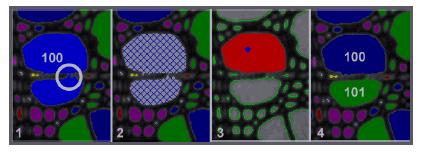
TOMORO ScopeEye는 순수 국내 기술로 개발된 영상 분석 소프트웨어(Image Analyzer)입니다.
기존의 외국 제품만을 사용할 수 밖에 없었던 영상 분석 소프트웨어를 국산화 하였을 뿐 아니라, 한국의 사용자의 생각과 요구를 반영하여 독창적인 한국인을 위한 영상 분석 소프트웨어로 새롭게 탄생하였습니다.
TOMORO ScopeEye의 직관적인 인터페이스는 원하는 분석 및 측정을 가장 쉽고 빠르게 획득할 수 있도록 도와 드릴 것입니다.
Normal Function
Capture(Multi Frame Capture) * 캡쳐 보드를 이용한 Analog CCD 카메라 영상 획득 가능 * 영상획득을 위한 다양한 인터페이스 지원(WDM, TWAIN등등) * 스크롤바를 이용한 실시간 이미지의 Zoom in, Zoom out 가능 * Multi Frame Capture : 일정시간 간격으로 영상을 동영상으로 저장 가능
Annotation
* 이미지 위에 문자, 선, 도형등을 그려 넣어 이미지의 부가적인 설명이 가능 * 8가지 Annotation 항목 지원
Navigation Display
* 이미지의 현재 위치 및 영역을 표시해 주는 Navigation Window * 현재 커서 위치의 이미지를 부분적으로 확대해 주는 Zoom Window * 스크롤 바를 이용한 이미지의 확대 축소 가능 이런 노멀
Normal Function 2
File Handling
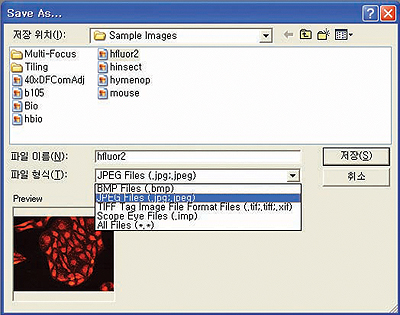
▶ JPEG, BMP,TIF,IMP(ScopeEye 자체 파일 포맷)등 다양한 파일 포맷 지원
▶불러오기 메뉴 선택시 이미지의 미리보기 기능 지원
▶ Printer
– Table기능을 이용 여러 이미지 편집 출력 가능
( 이미지 출력시 상,하 마진율 사용자 지정 가능)
Thumbnail Bar
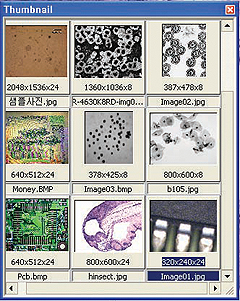
▶ 현재 이미지의 목록을 썸네일로 표시하여 이미지간의 이동 및 관리가 용이
▶ 이미지의 정보 및 파일 이름이 표시
▶작업 중 사용된 이미지는 신속하게 다시 열 수있음
AOI(Area of Interest)
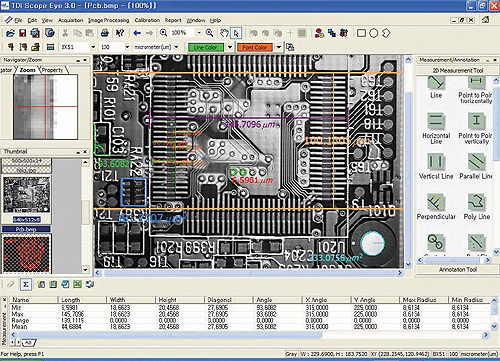
2D Measurement
Live Measurement
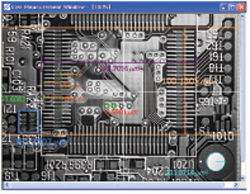
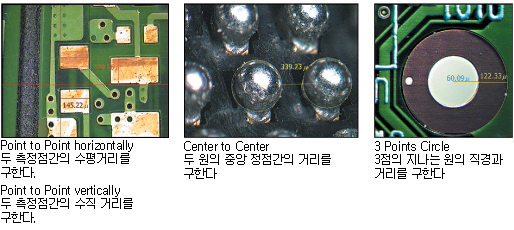
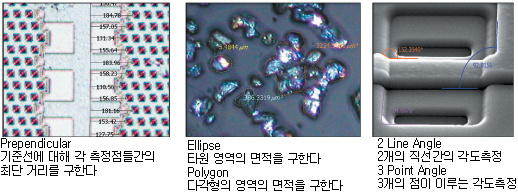
▶ 20여가지가 넘는 다양한 측정 항목 지원
▶ 사용자 중심적으로 만들어진 측정 아이콘
▶ 다양한 색으로 측정 개체를 표시할 수 있는 Auto-color rotation 기능 지원
▶ 측정 데이터의 폰트 크기 및 색 등을 이미지 환경에 맞게 변경 가능
▶ 2D Measurement의 모든 측정 항목을 Live image상에서도 수행 가능
Measurement Tool
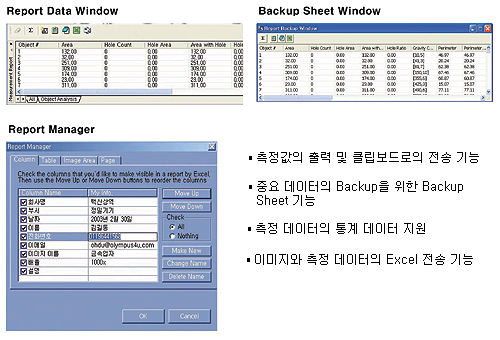
Measurement Report
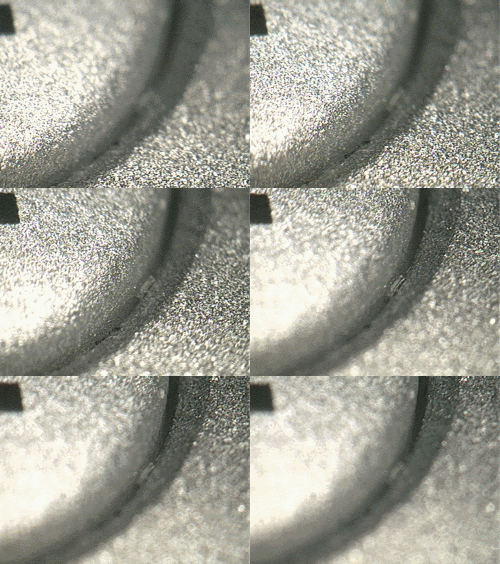
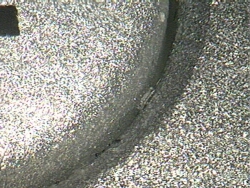
Multi Focus
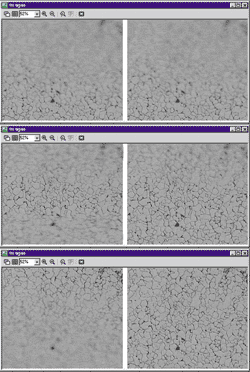
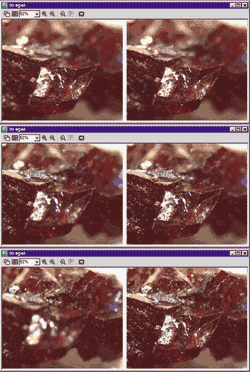
◆여러장의 이미지를 캡쳐한 장면
◆Multi Focusing한 선명한 이미지
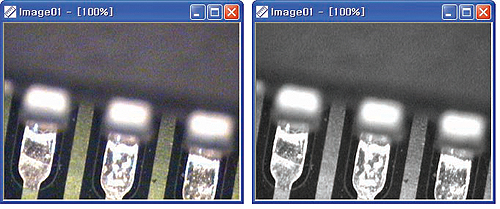
*고배율 관찰시 Sample의 심도차이로 인해 뚜렷한 영상을얻기가 어렵습니다.
이때 세 프레임 이상의 서로다른 초점의 영상을 획득한 후 multi-Fouse기능을 적용하여 위 아래가 전부 초점이 맞은 선명한 영상을 얻을 수 있습니다.
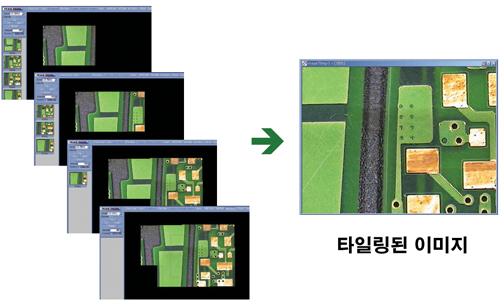
Imaging Tilting
▶ 타일링만을 위한 넓은 작업 Canvas제공
▶ Live 영상에서의 타일링 가능
▶ 고배율 촬영시 협소해진 관찰 영역의 확대 기능
▶ 이미지들의 OverLay된 부분을 자동으로 탐지하여 결합하는 자동 붙이기 기능 지원
▶ 하나의 이미지에서 고배율의 정밀 관찰과 전체 이미지 관찰이 가능
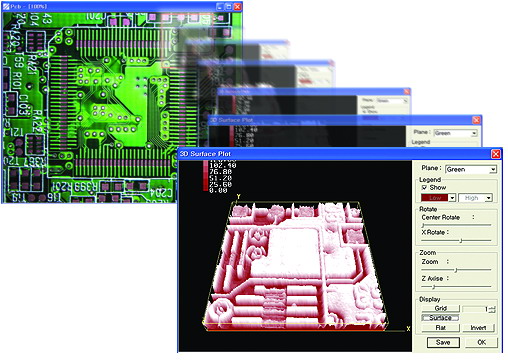
3D Display
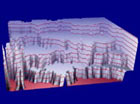
▶ 이미지의 휘도레벨에 따른 3차원 이미지 생성 기능
▶ 3차원 이미지의 의사칼라 표현 기능 및 Pattern Color 표현 기능
▶ 3차원 이미지내 휘도 레벨 표시 기능
▶ 3차원 이미지의 각도, 빛의 각도, 높이조절 등 Rendering 기능
▶ 실시간 데이터 갱신
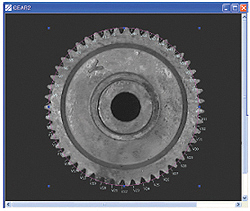
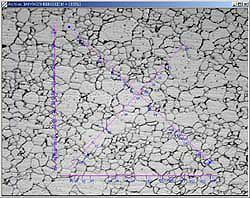
Caliper
◆Gear의 톱니바퀴 부분의 간격 측정
◆Grain 영역의 간격 측정
▶ 이미지내 개체의 경계 자동 검출 기능 ▶ 경계간의 간격 자동 측정 ▶ 실시간 데이터 측정 ▶ 데이터의 엑셀 등 SpreadSheet로의 출력 ▶ Data Collector를 이용한 여러 이미지간의 데이터 수집 기능
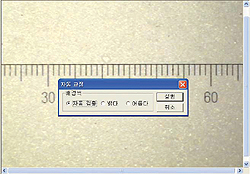
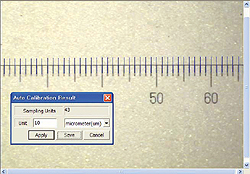
Auto Calibration
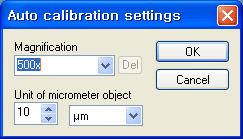
▶ 사용자의 편리성과 정확한 측도 설정을 위한 자동 측도 설정
▶ 실체 현미경이나 영상 현미경의 영상분석에 적합한 자동 측도 설정 기능
▶ 설정된 Calibration 환경값의 백업 및 복구 기능
▶ 우수한 반복 정밀도로 측정 데이터의 신뢰성 향상
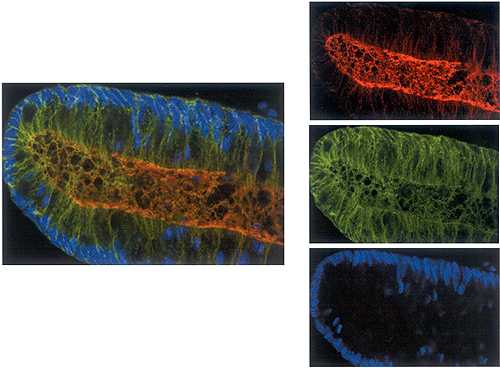
Split & Merge planes
* Split RGB : 이미지의 Red, Green, Blue Plane을 추출하여 3개의 이미지로 분리
* Split HSI : 이미지의 Hue, Saturation, Intensity Plane을 추출하여 3개의 이미지로 분리
* Merge Planes : Splite Planes에 의해 추출된 Plane들을 하나의 True Color 이미지로 생성
Color 변환
▶ Pseudo Color(의사 색변환)
▪ 캡쳐된 그레이 영상을 사용자가 정해놓은 시간 간격에 맞추어서 다양한 색깔로 보여준다.
▪ 변화되는 이미지를 사용자가 임의적으로 선택 가능
▪ Rainbow, Solaris, Thermal, Red to Blue, Blue to Red 등 다양항 색 변환 모드 제공
▶ RGB to Gray
– 컬러의 영상을 8비트의 그레이 스케일로 전환
– Color의 개념이 필요치 않은 Auto Counting의 전처리로 사용된다.
Image Enhancement
▶ Auto contrast
– 캡쳐된 이미지의 최상의 대비값을 자동으로 찾아준다.
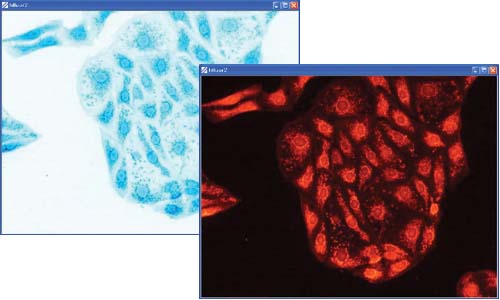
▶ Invert
– 낮은 휘도를 높게, 높은 휘도를 낮게 변경하여 휘도의 역상을 만듭니다.
▶ Auto Level
– 각각의 RGB 플랜에 대하여 최적의 Contrast값을 부여합니다.
▶ Brightness Contrast
– 캡쳐된 이미지에 Bright 및 Contrast 값을 조절합니다
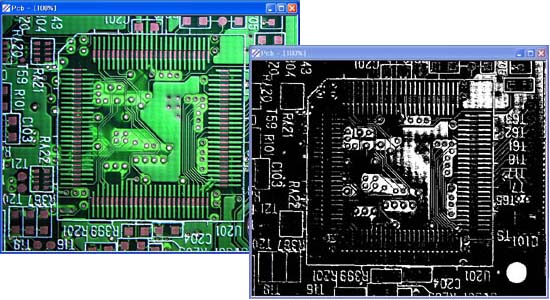
▶ Threshold
– 이미지를 임의의 임계값(Threshold)을 기준으로 Black & White의 이진이미지로 변환
Image Filter
▶ Morphological : 형태적으로 영상내의 물체의 형태를 표현
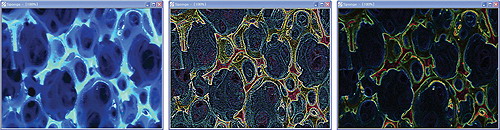
▶ Edge : 입력 이미지의 경계선을 검출
▶ Enhancement
– 원본 이미지를 필터링하여 향상된 이미지를 얻거나 원하는 이미지로 변환 가능
– 필터링 효과 적용전 미리보기 기능
▶ 사용자 정의 필터 : 사용자가 직접 필터를 만든 후 필요시마다 적용 가능
Database Manager
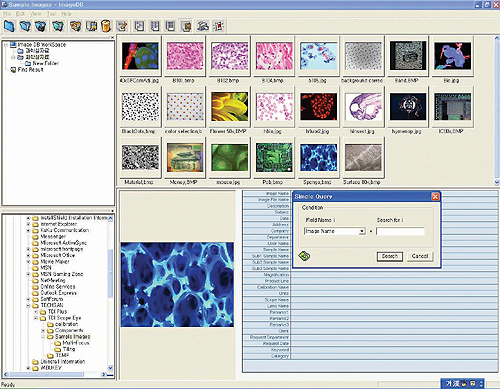
▶Image Database – 하드 디스크에 산재해 있는 이미지들의 가상 폴더 관리 기능
– 가승 디렉토리의 그룹화
– 단일 및 다중 검색어 지원으로 편리해진 이미지 검색
– 사용자 정의의 커스텀 데이터 필드 지정
– 편리한 이미지 미리보기 기능으로 다양한 이미지 출력
– 슬라이드 쇼 기능
– 패스워드 지정으로 보안 기능 수행
– 임의의 사용자 정의 데이터 필드 지정
Specification
File Handling
* 이미지 파일 포맷: BMP, JPEG, TIFF, IMP etc
* 그 외의 파일 포맷: EXCEL(*.xls), Text file(*.txt)
* 8bit Gray, 24bit Color Image Support
Imaging
* 다양한 프레임 그레버 지원
:DT313X, DT315X, Flashbus MV-Lite, Flashpoint, WDM base Frame Grabber etc
* TWAIN 인터페이스 지원으로 디지털 카메라 및 스케너 등의 장비 지원
* 크기를 변경하여 영상을 획득 가능
Image handling
* 오버레이 상에 이동 가능한 스케일 바 출력
* Image Navigation Window를 이용하여 큰 이미지나 확대, 축소시의 위치 이동이 용이
* 툴바, 키보드, 마우스 휠버튼을 이용한 Image의 Zoom In/Out
* 조합 가능항 5가지 Type의 Grid
Image Operations
* 포함된 필터들:
-개선:Hipass 3X3, Hipass 5X%, Gaussian 5X5, Median, Sharpen, Min, Max
-경계:Roberts, Sobel, Priwitt, Laplacian 3X3, Laplacian 5X5
-모토로지컬:Erode, Dilate, Open, Close
-사용자정의:User Defined filter 3X3 to 5X5
*칼라변환:RGB to Gray, Gray to RGB, RGB to HSI, HSI to RGB
*영상개선:Invert, Auto Contrast, Auto level, Histogram equalize, Remove noise, Brightness & Contrast Control, Threshold
*Geometric 변환: Resize, Rotate, Filp Vertical, Flip Horizontal, Flip Both
Interactive Measurement(2D Measurement)
* 20가지 Interactive measurement 항목
* 선, 측정 데이터 표시의 변경 및 속성 변경
* Vector 방식의 측정 항목 처리로 확대 시에도 선명한 측정 개체 표시 가능
* Microsoft Excel로 DDE를 통한 데이터 및 통계값 전송
Live Measurement
* 라이브 영상 획득 모드 상에서 Interactive Measurement 수행 가능
* 이미지 획득시 모든 측정 항목도 함께 획득
Auto Measurement(Auto counting버젼에 한함)
* Color Picker 기반의 직관적인 입자 검출
* 히스토그램 기반의 지능적인 입자 검출
* Magic Wand에 의한 지능적인 입자 검출
* Undo/Redo 기능 지원
* 5가지 분류 항목의 30여가지의 측정 항목: General, Mer, Diameter, Radius, Global analysis
* 각 측정 항목의 범위 설정 가능
Others Function
* Plug-in module 설계로 추후 특정 모듈이 추가 및 원하는 기능 확장이 용이
* 문맥 감지 도움말로 상황에 맞는 도움말 제시
Multi Focusing
* 초점이 맞지 않는 이미지들을 초점 심도가 맞는 부분만을 조합하여 깨끗한 하나의 다중 초점 영상을 획득
Image Tiling
* 고배율로 갈수록 관찰 가능한 영역이 협소해지는 현상이 발생
* Image Tiling 기능을 사용하여 여러개의 협소한 관찰 영역 이미지들을 하나의 큰 이미지로 조합 가능
* 저장된 이미지 파일 및 Live 영상 획득으로 타일링 기능 수행 가능
Caliper
* 이미지내 개체의 경계 자동 검출 기능
* Derivative, pattern Match 등의 정확한 경계 검출 방법
* 경계간의 간격 자동 측정
3D Display
* 이미지의 휘도 레벨에 따른 3차원 이미지 생성 기능
* 3차원 이미지의 의사칼라 표현 기능 및 pattern color 표현 기능
* 3차원 이미지의 각도, 빛의 각도, 높이 조절 등 Rendering 기능
Split planes & Merge planes
* RGB, HIS color Component 분리
* Red, Green, Blue Plane 조합
* Hue, Intensity, Saturation Plane을 조합
Auto Calibration
* 실체 현미경이나 영상 현미경 분석에 적합한 자동 측도 설정 기능
* 우수한 반복 정밀도에 의한 측정 데이터 신뢰성
* 현미경 상에서 고배율(500배 이상)에서 척도 설정의 신뢰성 향상
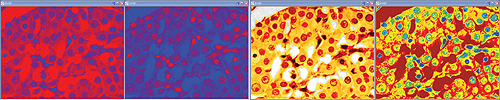
Pseudo Coloring
* Gray 이미지에 대해서 의사 칼라링 가능
* 음영의 경계 부분을 가시적으로 표시 가능
* 10여 가지의 LUT 지원 및 임의 LUT 생성 기능
User Interface
* 도킹 가능한 컴포넌트 윈도우 구성으로 사용자가 편리한 작업 환경을 구축 가능
* Measure / Annotation, Navigation / Zoom, Thurmbnail bar, Measurement Report
* 정밀 측정을 위한 Zoom 다이얼 로그 박스
* 관심 이미지 영역 이동을 위한 Navigation 윈도우
Database
* 사용자 정의의 커스텀 데이터 필드 지정 가능
* New, Open, Save, Save as, Close Database
* 인쇄 미리보기와 이미지 인쇄를 위한 위치 지정
* 이미지 검색이 용이
* 썸네일 크기로 이미지 조절
* 시간 조절 가능한 슬라이드 쇼 가능
Report
* 이미지와 측정 데이터를 Microsoft Excel로 전송
Others Function
* Plug-in module 설계로 추후 특정 모듈의 추가 및 원하는 기능 확장이 용이
* 문맥 감지 도움말로 상황에 맞는 도움말을 제시
i-Solution Series 중 가장 간편하면서도 다양하고 강력한 측정기능을 제공하는 소프트웨어입니다. 매우 쉬운 사용환경과 다양한 측정기능을 통해 고객님들은 쉽게 이미지 분석 소프트웨어 전문가가 되실 것입니다.
주요기능
이미지 장치 지원
최근의 모든 디지털 카메라등의 하드웨어로 부터의 이미지 획득 가능
윈도우 호환 WDM 및 Twain 드라이버 지원
일반 사용 목적의 디지털 카메라 지원
Optronics 디지털 카메라 지원
Lumenera 디지털 카메라 지원
Jenoptic 디지털 카메라 지원
Qimaging 디지털 카메라 지원
Nikon 디지털 카메라 지원
(including DXM1200F,DS-5M,DS-2M)
Olympus 디지털 카메라 지원
Pixelink 디지털 카메라 지원
모든 프레임 그래버 지원
새로운 디지털 카메라의 드라이버 제작 가능
Spot insight camera 지원
동영상 지원
iSolution Lite에서는 Time Lapse Capture 기능을 제공합니다. CCD 카메라 및 디지털 카메라로부터 일정한 시간간격을 두어 이미지를 캡처할 수 있을 뿐만 아니라 MPG, MPEG, AVI, MOV등의 동영상 파일로 제작이 가능합니다.
파일 형식 지원
jpg, jpeg, jpe, tif, tiff, bmp, gif, pcx, tga, mpg, mpeg, avi, mov, img, rpt, txt, 등의 모든 이미지 파일 및 동영상 파일, 기타 관련 파일 지원
이미지 편집 및 처리 기능
Undo(buffer size can be selected by user), Redo, Copy, Paste.
Annotation.
Image Resize, Rotate, Split Color Channel.
BCG (Brightness, Contrast, Gamma) Control.
Pseudo Color.
Filters-Image Enhancement, Emphasis Edge, Morphology, Special외 다양한 이미지 처리 필터
모든 이미지 편집 및 처리 기능 지원
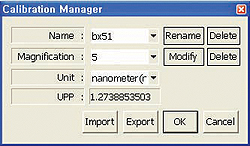
자동 측도 환산 기능
Image Analyzer를 사용하기 위해서는 Calibration의 과정이 필요합니다.
i Solution Capture는 이러한 번거로움을 제거하고 측정의 정확성, 신뢰성, 그리고 반복 재현성을 보장하기 위하여 Auto Calibration 기능을 개발하였습니다.
Calibration Scale 영상을 캡처하는 순간 소프트웨어에서 자동으로 모든 스케일을 읽은 후 실제길이를 파악합니다. 여러분은 어떠한 마우스 동작이나 키보드 동작을 하실 필요가 없습니다.
그 정확성과 반복재현성은 그 어떤 조작으로도 구현 불가능할 것입니다 .
측정 기능
i Solution Capture는 다른 어떤 제품보다도 다양한 측정도구를 제공합니다.
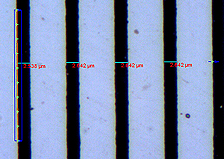
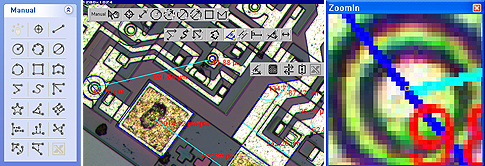
길이, 면적, 각도는 물론 자동으로 개체의 윤곽을 추적하여 측정할 수도 있고, 3points circle, n-points circle, Parallel Line Distance, Perpendicular Distance등 상상할 수 있는 모든 측정기능을 제공합니다.
그리고, Zoom in Window를 통해서 정확한 측정 포인트를 잡을 수 있습니다.
i-Solution Series 에서는 정지된 영상에서뿐만 아니라 라이브 영상에서도 모든 측정작업을 수행 할 수 있습니다.
라인 프로파일
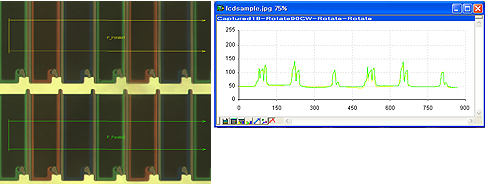
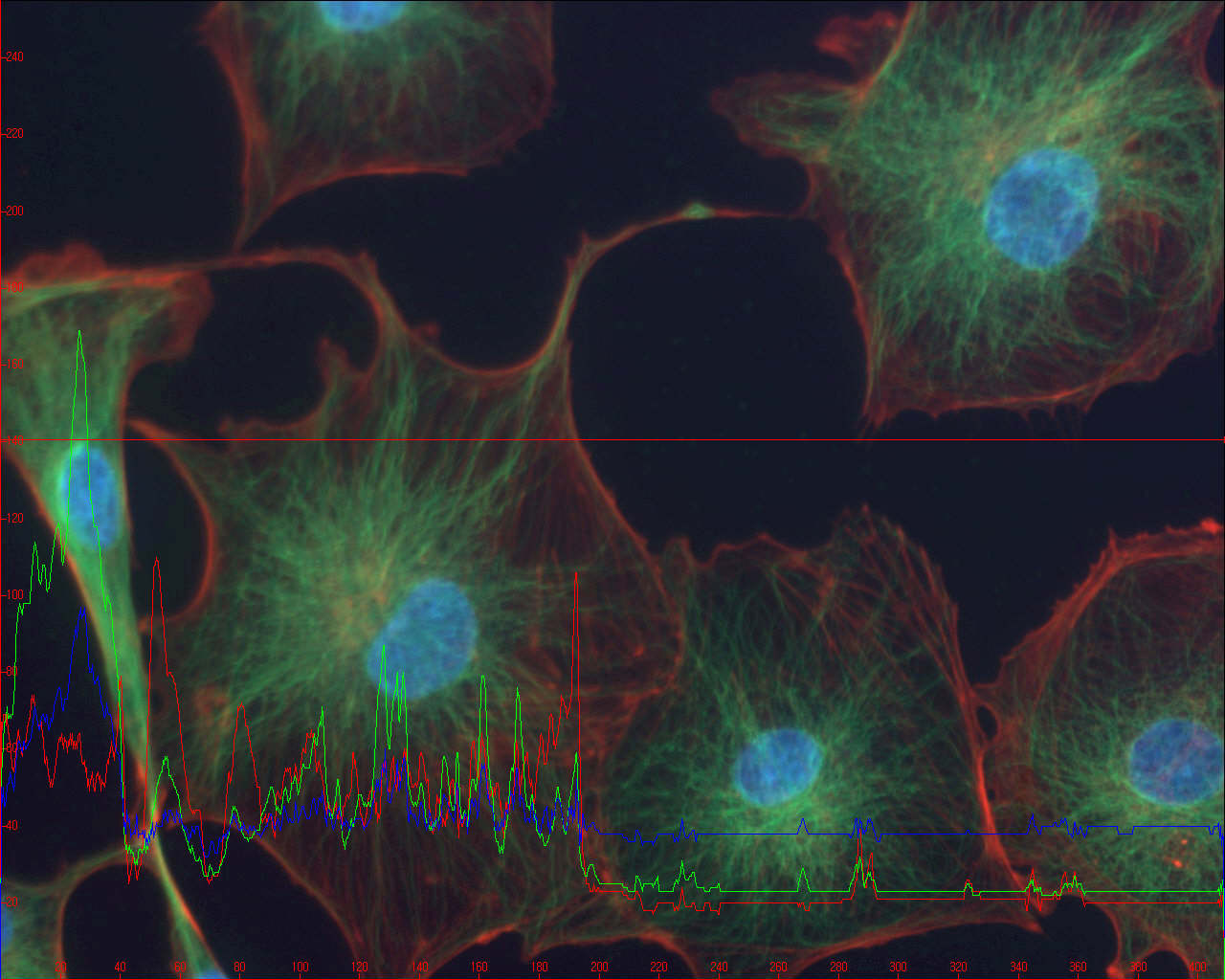
i-Solution에서는 이미지 내에서 특정 라인을 그려서 그 부분의 휘도 및 칼라 변화를 관찰할 수 있는 기능을 제공합니다. 직선, 곡선, 혹은 사용자 정의의 평행선 사이의 값을 산출하여 줍니다.
보고서 작성 및 데이터 엑셀 전송 기능
i Solution Capture는 자체 보고서 툴을 제공합니다.
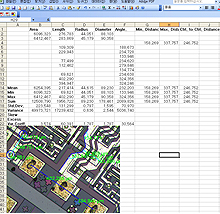
뿐만 아니라 모든 이미지 , 데이터, 통계 등을 엑셀파일로 한번에 전송할 수 있습니다.
보고서 작성을 마우스 클릭 한번으로 작성이 가능합니다 .
이제 이미지의 획득 , 분석, 보고서 작성까지 쉽게 한번에 수행할 수 있는 i-Solution Series를 만나보십시오.
This complete solution for high-level microscopy analysis and acquisition combines Image-Pro Plus 5.1 with powerful tools for multi-dimensional microscope control, image deconvolution, and 3D rendering (the same tools found in the Scope-Pro, AFA, SharpStack, and 3D Constructor Plug-in Modules).
*Image-Pro Multi-Dimensional Acquisition
Ideal for automated microscopy work, this package combinesImage-Pro Plus 5.1 with tools for multi-dimensional microscope control and acquisition (the same tools found in the Scope-Pro and AFA Plug-in Modules).
*Image-Pro Microscope Control
The Image-Pro Microscope Control (MC) package combines Image-Pro Plus Version 5.1 with tools to control and program the movement of your automated microscope and/or stage (the same tools found in the Scope-Pro Plug-in Module).
*Image-Pro 3D Suite
Ideal for deconvolution and interactive control and analysis of volume stacks, this package combines Image-Pro Plus 5.1 with image deconvolution and rendering tools (the same tools found in the SharpStack and 3D Constructor Plug-in Modules).
*Image-Pro Analyzer
Ideal for networked users who want advanced analysis tools but do not need image capture functionality at each work station. Image-Pro Analyzer offers all of the powerful analysis features of Image-Pro Plus 5.1, but does not include support for Twain or PhotoShop plug-ins. Available in 5 or 10-seat licenses.
Scope-Pro
Microscope and Stage Automation for Image-Pro Plus Software
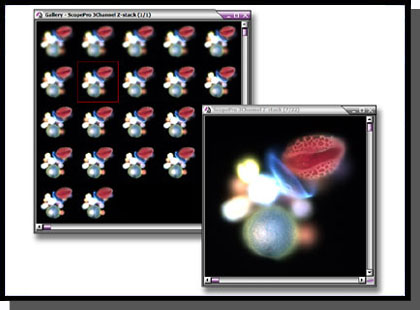
Standard point-and-click functions of the stage control include single step movement in any X, Y, or Z direction. Scope-Pro also controls your motorized filter wheels, shutters, filter sliders, and lamp settings.
Capture and save Z-stacks of images
Features
Easy Setup
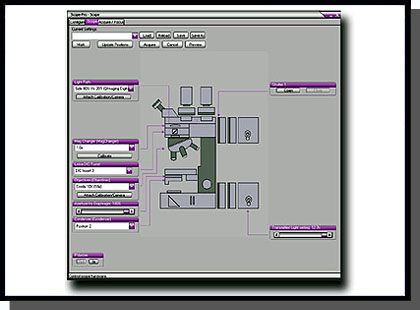
• Control microscope hardware, including several
brands of filter wheels, shutters, stages, and automated
microscopes
• Use repeatable settings for all optical parameters
associated with image capture
• Define the scan origin at any point
• Improved spatial calibration procedures
• Streamlined and simplified user interface
• Support for multiwell plates and multiple microscope
slid holders
• Combine wells in a multiwell plate into experimental
groups
• Incorporate Image-Pro’s 200+ analysis and processing
routines
• Automate repetitive functions and movements by recording
them in an Auto-Pro macro or Visual Basic program*
Use intuitive graphical setup to configure microscopes.
Calibration
• Control devices with or without a calibration • Preserve calibrations across lens changes with new lens files • Use stage movements to make calibrations
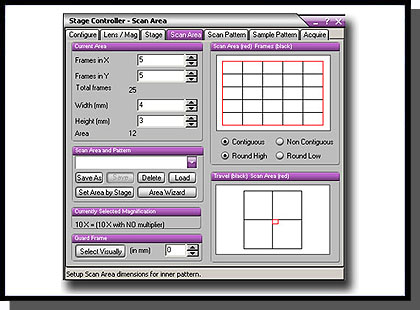
Work with pre-defined multiwell plate patterns for easy setup.
X, Y, and Z Control
• Define the acceptable range of travel
• Capture Z-stacks of images as a stack or sequence
• Generate and create Z-stacks, composite, and extended
depth of field of images for both brightfield and fluorescent
image data
• Measure X, Y, and/or Z distances
• Save X, Y, Z, and time information with the image
• Assemble tiled images into a single high-resolution image
Create, store, and manage scan areas for a variety of imaging conditions.
Streamlined Image Capture
• Easily automate fluorescence and brightfield image
acquisition
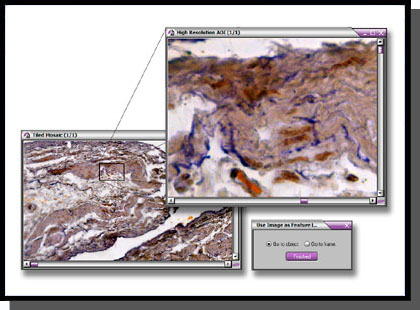
• Capture high-resolution images as a feature map
• Minimize light exposure and reduce photobleaching with
shutter control
• Prompt for non-automated peripheral components
Locate features of interest with image feature map.
* Macro programming tools only available for Image-Pro Plus users.
AFA
Advanced Fluorescence Acquisition-AFA
Automate and Manage Complex Acquisition Modes and Image Sets in Image-Pro Plus Software
The AFA – Advanced Fluorescence Acquisition plug-in module is for designed research microscopists who need to automate and manage complex acquisition setup parameters, user feedback display, and subsequent sorting into sets for analysis. It allows researchers to manage all combinations of image acquisition modes and image sets including time, channel (wavelength), focus (z-stack) and stage position.
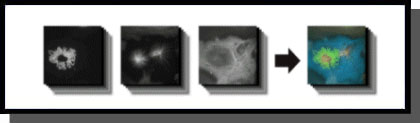
Composite image derived from 16 Z-stack sets from 3 fluorescent channels using AFA *Composite image courtesy of Richard Cole, Wadsworth Center, Albany, NY.
Features
Acquire and Manage Image Datasets in Multiple Dimensions
• Time – Perform time-lapse experiments or automatically calculate the fastest cycle time.
• Channel (wavelength) – Using Scope-Pro’s configuration files, images can be collected from individual
channels. While fluorescence wavelengths are the most common channel type, DIC, RGB, and other modes
can be defined. Descriptive input settings(e.g. Numerical Aperture, Refractive Index and ObjectiveMagnification)
are stored and can be read and used automatically by the SharpStack deconvolution and 3D Constructor Plug-
in Modules.
• Focus (Z-stack) – Return either a single best-focused frame or a full stack for deconvolution and rendering.
Focus drift can be automatically corrected by finding the best starting plane.
• Stage Position – Landmarks can be assigned and used for acquiring data from multiple locations. Alternatively,
a regular pattern(such as a 96-well plate) can be configured. Image-Pro’s tiling tool enables you to
automatically build large images from multiple, smaller location acquisitions.
Configuration Wizard
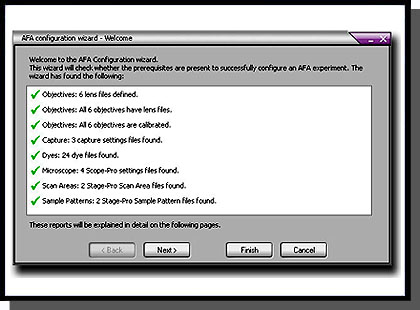
The Configuration Wizard guides you through the necessary setup procedures to ensure the success of your acquisition. AFA will automatically check to make sure it has the necessary settings to acquire your images, including objective lenses, spatial calibrations, camera settings, lookup table information, and Scope-Pro settings.
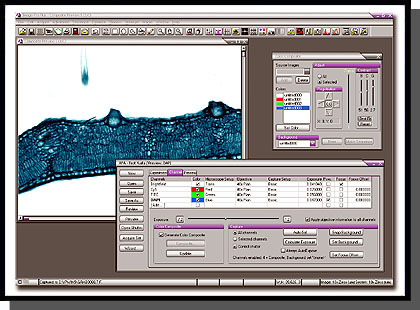
Manage all combinations of image acquisition modes and datasets.
Exposure Control
Full exposure control is available for each channel. You may even specify composite image to be automatically built as the image set is acquired. Convenient testing options ensure that no time is wasted in method development and an optimum image set is produced. For best results, background correction may be implemented.
Ensure the success of your image acquisition with the Configuration Wizard.
Preview Settings
Multiple image sets can take a long time to collect. You do not want to discover at the end of a run that the parameters were not quite right. The preview function reassures that the desired settings are selected.
Status Update
Monitor the progress of your acquisition with the status display. View the total elapsed time, time left between
cycles, current sample position, wavelength, and Z-position. You may also pause your acquisition and re-focus at the current position. If you pause in the middle of a Z-stack, the partial Z-stack will be discarded and a new stack, centered on the new focus position will be acquired.
Manage Multiple Image Sets
Organizing, extracting, and displaying multiple image sets is a tremendous challenge. The elegant, simple interface of the Set Manager tool unlocks the information within your image sets. Use it to play a movie showing changes of any single dimension. The active data set can be extracted as a separate sequence and stored in .seq or .avi file formats that can be shared with other software for presentation and reporting. The Set Manager provides clear parameter display so you may understand how the data was collected (or assembled from separate sources) and documented. Set information may be stored and recalled via a database or via files.
SharpStack
SharpStack
Image Deconvolution and Image Deblurring Tools for Image-Pro Plus Software
SharpStack and SharpStack Plus remove haze and improve resolution in two-and three-dimensional image stacks using deconvolution and deblurring algorithms.
SharpStack offers Nearest Neighbor, No Neighbor, and Inverse Filter algorithm functions, while SharpStack Plus offers additional 2D and 3D Blind algorithms.
• Enhanced Visualization – Produce image with increased resolution, increased contrast, and improved signal-to-noise ratio.
• Work with Quantitative Data – Retain quantitative accuracy of your data with 2D and 3D blind algorithms.
• Smooth Workflow – The SharpStack Plug-in Modules integrate seamlessly with Image-Pro Plus, 3D Constructor and Image-Pro Discovery.
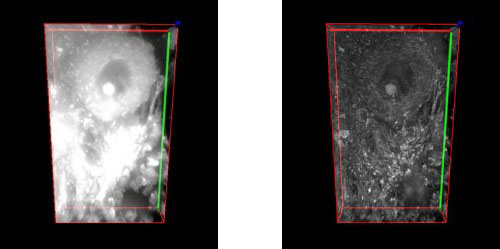
Pig cerebellum image stack deconvolved and rendered (bottom) with SharpStack and 3D Constructor plug-in modules.
Image Deconvolution
Elucidating 3D Structures
Cells and tissues are three-dimensional structures, the observed image at the focal plane contains in-focus information from the plane of interest, as well as out-of-focus contributions from other parts of specimen.As a result, details within the image plane or volume of interest may be obscured. To reveal these structures and produce reliable 3D data, image sharpening techniques such as confocal microscopy and digital deconvolution and are widely employed.
Digital Deconvolution
Digital deconvolution is a mathematical method that restores haze from image planes in an optically sectioned image to its point of origin. The out-of-focus signal may be evaluated as a point-spread-function (PSF) which is applied to reverse the natural effects of blurring within an optical system. The beauty of the technique is that it does not omit or remove any signal being collected by the imaging system. Instead, each photon of light collected is evaluated and restored to its point of origin. The result is an image volume with improved clarity and contrast. The PSF is at the core of the deconvolution process. It determines how light is distorted in an optical system, taking into account such factors as the wavelength(s) of light being collected, the numerical aperture of the objective lens and the refractive index of the immersion media used to couple the microscope objective to the slide. The PSF models how a single point of light reacts to the imaging environment. As light distorts in its travels through the optical path, it assumes an hourglass shape. It is this effect which is then used to evaluate how light distorts at every point within the image volume. Here is how the process works- deconvolution algorithms make the assumption that the raw image volume is a convolution of the estimated volume with the PSF. These methods then make an estimation of what the raw image volume will look like when the PSF is applied to an estimation of how the haze-free volume would appear. The process is iterative, with several estimations being made, each one a closer approximation to the estimated volume. But since it is not possible to arrive at the original volume, constraints are placed on how many iterations the algorithms will make before returning the final deconvolved image. For this reason, the algorithms are referred to as constrained iterative deconvolution.
To simplify the process, the image volumes and PSF are converted into Fourier transforms, a simple method of modeling the data. By multiplying the Fourier transforms of volume and PSF, three dimensional coordinates are re-transformed into an image.
X/Y(left) and X/Y projection(right) of a single point of light blurred in an optical system. This information is used as a PSF to deconvolve images volumes.
Algorithms
Two general methods for haze restoration/removal are included in SharpStack and SharpStack Plus. Not only are deconvolution algorithms included, but also No- and Nearest-Neighbor haze removal (“deblurring”) methods.
Deblurring methods achieve resolution by subtracting light haze from image planes. The result is previously hidden details suddenly becoming apparent. Controls within SharpStack allow you to choose the appropriate level of haze to subtract.
The deconvolution routine used by SharpStack Plus makes use of the Maximum Likelihood Estimation algorithm. A blind PSF models the characteristics of the objective lens used to collect the image and creates a theoretical representation of blurring in the optical system. This blurring function is then used as the basis for restoring signal in the volume. The routine does not omit signal to improve resolution, providing sharp, clear and quantitatively accurate details of previously obscured structures.
Methods Included with SharpStack Plus:
• 3D Blind Deconvolution -Operates on the entire image volume. Photons are not removed so the image remains quantifiable. Uses the Maximum Likelihood Estimation algorithm to achieve resolution.
• 2D Blind Deconvolution -Operates in an iterative manner on a single image plane. This method has better noise suppression and resolution improvement compared to Neighbor-based methods. The 2D Blind method also retains the captured photons rather than removing them, yielding a quantifiable image.
• No Neighbors is a 2D deblurring method applied to a single image plane. Although this method is the fastest, it may not be as representative of the sample as the other methods.
• Nearest Neighbors is a 3D deblurring method which operates on limited Z information (3 slices). It operates by evaluating information from image slices that reside above and below the user-defined image plane of interest.
• Inverse Filter is a 3D deblurring algorithm applied to entire image volumes. It is a one-step, non-iterative approach based on the Wiener filter method. To achieve resolution with this technique, the captured image is divided by the analytic PSF. This method is a fast way to return a qualitative image. It will also return a better image than either the No- or Nearest Neighbor methods, especially along the X/Z and Y/Z axes. This filter can also incorporate a correction for spherical aberrations.
Methods Included with SharpStack and SharpStack Plus:
• No Neighbors
• Nearest Neighbors
• Inverse Filter
Spherical Aberration Correction:
SharpStack and SharpStack Plus contain a method for correcting spherical aberrations.
These effects may appear as haze in an image and result from irregularities in the optical system such as refractive index mismatches (i.e. using an oil immersion lens with a sample mounted in aqueous media) or incorrect coverslip thicknesses.
Figure 3 aFigure 3 cFigure 3 bFigure 3 d
Figure 3: Example of spherically aberrated image: a) XY and b) XZ maximum intensity projection of the original image*, c) XY and d) XZ maximum intensity projection of the deconvolved image with spherical aberration compensation (algorithm provided by AutoQuant Imaging, Inc.).
*Courtesy of Diane Kube, Ph.D., Co-Director CF Imaging Core, CWRU Department of Pediatrics
3D Constructor
3D Rendering and Measurement Tools for Image-Pro Plus Software
3D Constructor is for scientific researchers who wish to explore three-dimensional relationships within and among objects. It is available in the following Image-Pro packages:
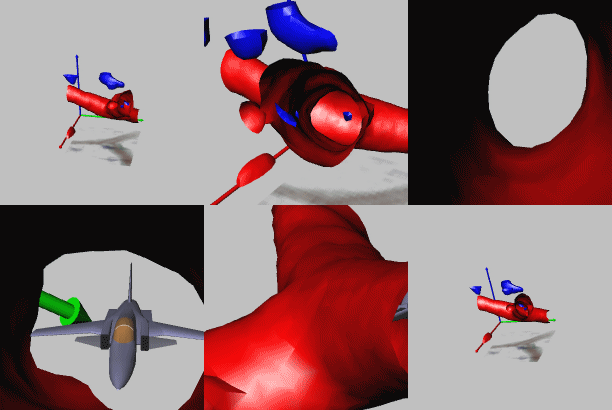
3D rendering of a kidney glomerulus Image courtesy of Dr. Brian Matsumoto -Department of Molecular, Cellular and Developmental Biology University of California, Santa Barbara, CA
Overview
No other analytical imaging product for 3D rendering offers the power and functionality of Image-Pro’s 3D Constructor tool. Gain a better understanding of your images by visualizing, exploring, and applying measurements in three and four dimensions.
Images in Three Dimension
Explore the depth of your images by visualizing and interacting with them in three dimensions.
View volumes from any angle, with adjustable transparency and shading.
Zoom, rotate, and pan image stacks.
Work with calibrated Voxel-size.
Use adjustable lighting controls for enhanced viewing.
Visualize clipping planes in orthogonal and oblique plane-selections.
View internal features of 3D stacks by selecting volume of interest (VOI).
Display synchronized, orthogonal views through an image stack with Stack Slicer.
View multiple iso-surface renderings based on segmentation of selected intensities and colors.
Project a virtual shadow of your image to get a better visual understanding of your object’s 3D shape.
Apply Measurements to 3D Images
Obtain quantifiable data from your three-dimensional image through manual and volume measurements.
Manual Measurements in 3D Constructor:
Obtain quantifiable data from your three-dimensional image through manual and volume measurements.
• Individual point.
• Point-to-Point distance.
• Point-to-Surface distance line.
• Line.
• Angle.
• Point-to-Line distance.
• Circumference of an object bisected by plane.
• Surface distance between two points.
Volume Measurements in 3D Constructor:
• Volume.
• Surface Area.
• Sphericity.
• Feret measurements.
• BOunding box measurements.
• Centroid information.
• Automatic update of measurements from frame-to-fram playback of 4D sequences.
• Set filter ranges for any measurements.
• Clean borders.
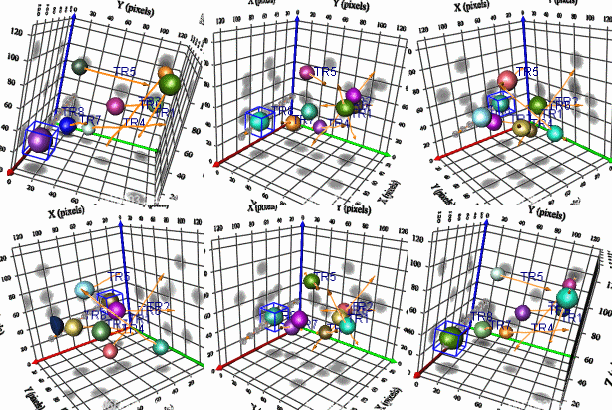
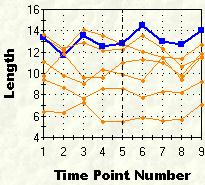
Track Objects in a 4D Sequence – NEW
Track and measure the movement of individual objects in a 4D sequence with the 4D tracking feature in 3D Constructor. Choose to automatically find 4D tracks in your image or manually track objects.
Example of 4D object tracking and related tracking data.
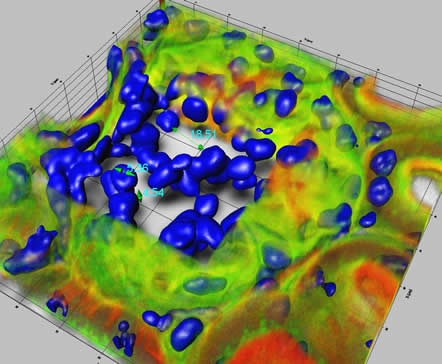
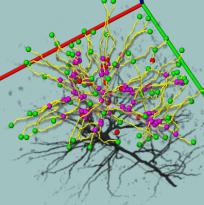
Visualize, Trace, and Count Neurons – NEW
Analyze neurons and other filament structures with the neuron tracing tool in 3D Constructor. Visualize and count the number of branches in a neuron as well as the length and volume of each branch.
Example of neuron analysis using Image-Pro Advanced Microscopy Suite (AMS). Image courtesy of Ling Wang, Department of Neuroscience (Tuszynski Lab) and Brendan Brinkman- Neuroscience Microscopy Shared Facility – University of California, San Diego, CA
Explore Wavelength Overlap with 3D Colocalization
Use Image-Pro’s colocalization tool to indicate which fluorescent regions are to be considered as overlapped, or colocalized. Then activate 3D Constructor to display the colocalized regions in three dimensions.
Create Animations of 3D Images
Share your 3D rendered images with others using 3D Constructor’s easy 3D animation creation tools. Create animations with changing transparencies, slide positions, colors, etc. to give others a better understanding of the depth of your 3D image. Save in AVI or multi-frame TIFF or SEQ formats.
3D animation created using 3D Constructor.
Display and Export Image Data
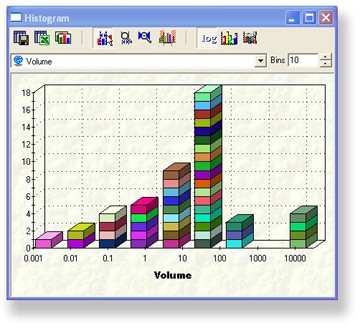
Display and interact with measurement data from individual, histogram, or scatterplot displays. Export 3D measurement data to Microsoft® Excel.
View measurements in histograms and export to Microsoft Excel.
Color-Pro
Color-Pro Plug-in
Accurate Color Rendering for Your Entire Imaging System
Manage the display of color fidelity of your images within Image-Pro to ensure that you are seeing accurate, consistent colors across your imaging system.
Many analyses are based upon the intensities within each RGB channel for identification, classification and/or quantitation. With Color-Pro color management, you can be sure the color-corrected values will not be compromised.
Key Benefits
• Consistent Color – Feel confident that the colors you see through your microscope eyepiece are the same colors you see on your monitor.
• Better Quantitative Results – Free yourself from relying on personal observation for qualitative interpretation and move towards greater automation and quantitative results. Color-Pro is particularly valuable for pathologists, production facilities, and others who rely heavily on color interpretation to make important decisions.
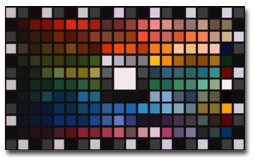
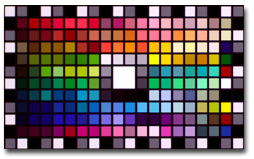
Before color correctionAfter color correction
Features
Color-Pro Plug-In Module Features
• Every image can have its own color space.
• Allows ICC profiles for input devices (like a camera), display devices, light sources and output devices to be corrected automatically or applied to collected image files in order to maintain accurate color rendering.
• Color profiles associated with images can be saved/loaded in TIFF files.
• Convert images from one color space to another.
• Measure XYZ and L*a*b* colors according to the assigned image color space.
• Includes ICC profiles for cameras supported by the Image-Pro family (Image-Pro Plus, Image-Pro Discovery, and Image-Pro Express)
Color-Pro Plug-in Module Kit Includes:
• Color-Pro Plug-In Module for Image-Pro 5.0 family of products
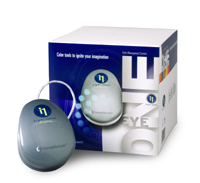
• Eye-One Monitor Profile Package
GretagMacbeth Eye-One Monitor Profile Package
The Eye-One Monitor Profile Package includes a colorimeter and software that enables you to adjust your monitor to display consistent, predictable color. The Eye-One Display compact colorimeter measures the color output of your monitor – both CRT and LCD. The Eye-One Match 2.0 Software works effortlessly with the Eye-One Display to build an ICC profile.
Eye-One Monitor Profile Package
* Profile Package features include:
• USB powered
• Use at multiple workstations at no additional licensing fee
• Includes counterweight for easy use with any CRT or LCD monitor.
• Macintosh and PC compatible – Classic, OS X, Windows 2000, XP Professional
(Image-Pro products are only available for the PC)
“analySIS“제품은 세계적으로 유명한 독일의 영상분석 전문업체인 OLYMPUS Soft Imaging Solution(OSIS) 사에서 제작한 최첨단 영상분석 프로그램입니다.
OLYMPUS Soft Imaging Solution사는 1987년 설립된 후 2006년 4월 OLYMPUS의 일원이 되었고 광학 현미경 및 전자 현미경용 분석 소프트웨어 및 디지탈 카메라 제품을 포함한 영상분석의 모든 솔루션 제공하고 있으며 유럽을 중심으로 다양한 분야에 사용되어 전세계의 많은 영상 분석 전문가와 연구진에게 사랑과 신뢰를 받고 있습니다.
주로 셀 카운팅, 크기 측정, 형광 관찰, 미생물 관찰 등과 같은 기능을 지닌 의학, 생명공학용 image analyzer인 analySIS LS는 다음과 같은 등급으로 구성되어 있고, analySIS LS Report 이상의 등급부터 필요한 module을 추가하거나 제품을 upgrade할 수 있습니다.
LS STARTER : analySIS LS 의 첫 등급으로 형광 합성, 단순 측정과 같은 기능을 제공합니다.
LS REPORT : analySIS LS의 두번째 등급으로서 STARTER의 모든 기능과 data base, report 기능이 추가 되었습니다. 또한 STARTER 이상의 등급부터 필요한 module을 추가하거나 제품을 upgrade할 수 있습니다.
LS RESEARCH : analySIS LS의 세번쩨 등급으로서 REPORT의 모든 기능과 Microscope controller, Multiple Image Alignment (mia), multiple fluorescence imaging, Extended Focal Imaging (efi), Graph 등의 기능을 제공합니다.
LS PROFESSIONAL : analySIS LS의 최고 등급으로서 RESEARCH의 모든 기능과 fft (fast fourier transformation), imaging C Track IT, Colocalisation 등의 기능을 제공합니다.
OLYMPUS Soft Imaging Solution 사의 최신 영상 분석 프로그램인 “analySIS LS” 시리즈는 사용자에게 정확하고 신뢰성 있는 데이터를 얻게 해 줄 것 입니다.
analysisFive LS Starter
analysisFive LS Starter는 entry 등급의 image analyzer로서 다음과 같은 기능을 수행할 수 있습니다.
Image Acquisition
Olympus 및 OLympus Soft Imaging Solution의 모든 현미경용 카메라를 지원하며 완벽한 알고리즘을 통해 뛰어난 영상을 재현합니다. 이를 통해 획득한 영상은 최대 16장까지 동시에 비교 분석이 가능하면 동일 배율 지원, 동일 위치 지원과 같은 최상의 분석 기능을 제공합니다.
[동시비교-최대 16이미지]
Simple measurement
단순거리 측정, 수동 카운트, intensity 분석, 면적 분석 등과 같은 기능이 지원 됩니다.
Multi-channel fluorescence
염색된 각각의 대상의 이미지를 한장씩 획득하여 하나의 이미지로 합성하여 쉽게 원하는 영상을 획득할 수 있습니다.
(olysia 홈페이지에서 동영상 파일 옮기기!)
analysisFive LS Report
analysisFive LS Report는 Starter의 모든 기능을 report작성, 이미지, 데이타의 데이타 베이스화 기능을 수행 할 수 있습니다.
Archiving(데이타 베이스)
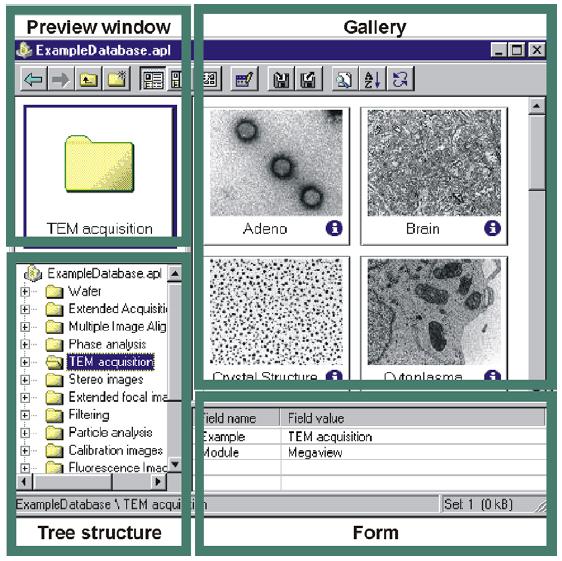
새로운 STructured ARchive (STAR) database 는 이전의 Microsoft Access-style database를 대체합니다. 특히 Windows Explorer-type tree 구조에서 이미지 찾기를 보다 쉽게할 수 있도록 하였습니다. Database Assistant를 이용하여, database 구축을 쉽게할 수 있고 고급 기능을 통해 사용자의 취향에 맞는 정리가 가능합니다. 드래그와 드롭만으로 이 모든 기능이 자동으로 이루어 집니다. 그리고 모든 이미지는 사전에 정해놓은 폴더에 자동으로 저장할 수 있습니다.
(olysia 홈페이지에서 이미지 파일 옮기기!)
STAR databases can be queried in a variety of ways:
•
simple queries of one or more fields with logical Boolean strings and wildcards
•
free queries
•
SQL queries
데이타 베이스는 네트워크를 통해 자동 저장, 백업이 가능합니다.
(olysia 홈페이지에서 이미지 파일 옮기기!)
analysisFive LS Research
analysisFive LS Research는 Report의 모든 기능과 motorized 현미경 제어, new measurement, MIA, EFI 의 기능을 수행합니다.
Microscope & Hardware control
Olympus 현미경 BX61,IX81,SZX12/SZX16를 프로그램에서 제어할 수 있습니다.
이를 위해서는 하드웨어 마법사를 실행하여 motorized 현미경 장치-대물렌즈, 필터, 큐브(형광, dic), 콘덴서-를 구성하고 이는 프로그램 내부의 컴퍼넌트 리스트에서 쉽게 선택할 수 있습니다. 또한 여러 사용자마다 원하는 구성을 셋업도 할 수 있고 한번 셋업된 후에는 프로그램 작동만으로 모든 하드웨어들도 함께 자동으로 제어할 수 있습니다. 이를 통해 형광, 위상차, 편광, DIC 같은 여러 관찰도 한번의 셋팅과 클릭으로 편하게 사용할 수 있습니다.
(olysia 홈페이지에서 이미지 파일 옮기기!)
현미경 대물렌즈를 바꾸면 프로그램은 렌즈의 배율을 자동적으로 읽은 후 알맞은 스케일바를 이미지에 보여줍니다. 그리고 Z축이 motorized 되어 있으면 렌즈 변환시에도 촛점 거리를 자동으로 맞출 수 있습니다.
다음 회사 제품의 motorized stage를 지원합니다. Prior, Ludl, Märzhäuser
다음 회사 제품의 third-party shutters 와 filter wheels을 지원합니다.Prior, Ludl, Sutter, Uniblitz
(olysia 홈페이지에서 이미지 파일 옮기기!)
New measurement
새로운 측정툴은 매직완드, 다각형 측정, 자유 측정과 같은 강력한 기능을 지원하며 측정하고자 하는 값은 113가지가 가능합니다. (길이, 넓이, 반지름, intensity 등) 또한 측정된 값들은 측정 개체별로 통계값을 바로 볼 수 있으며, 아주 간단하게 sheet로 만들어 Microsoft Excel 형식 사용할 수 있습니다.
Dual Screen System
두 개의 모니터를 사용하여 넓은 화면으로 이미지의 분석 효율이 높아집니다.
Graph
그래프 기능으로 레포트에 충실한 자료로 당신의 레포트 질을 높일 수 있습니다.
fis (Fast Image Acquisition)
고속으로 이미지를 획득하여 빠른 변화를 손쉽게 저장할 수 있습니다.
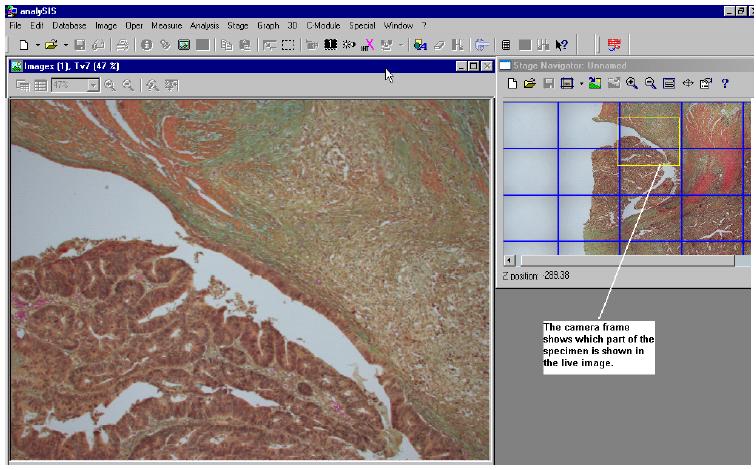
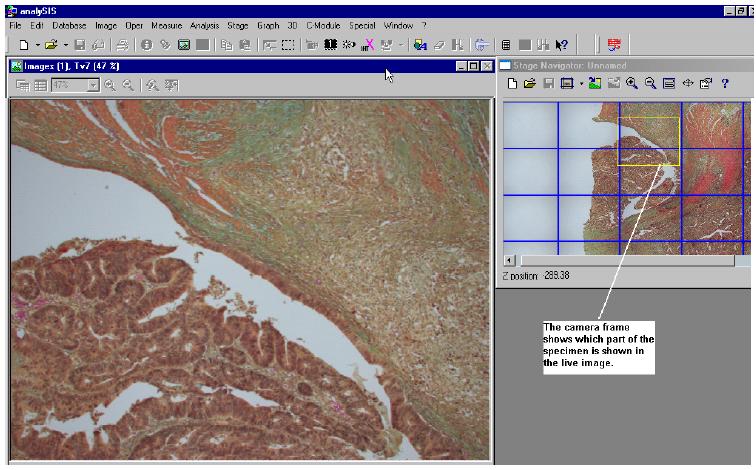
Stage Navigator
Stage Navigator를 이용하여 원하고자 하는 포인트를 지정하여 빠르고, 정확하게 확인 하실 수 있습니다.
With the Stage Navigator you can acquire overview images of a sample and use them for a precise navigation. This assures that you always know your exact location on the sample. You can recognize interesting areas in the sample, move to them in the live-image, and acquire images with a higher magnification. In the overview image, a “grid within a grid,” enables you to recognize the areas you have acquired with a higher magnification. You can deactivate this display if you want to.
MIA (multiple image alignment) 관 여러장의 사진을 합성하여 넓은 영역을 하나의 파일로 만들어 편리한 관찰이 가능합니다.
Mia works with both monochrome and color images, supports the entire number of file formats in analySIS®, and includes an intelligent image acquisition mode with automatic calibration of the camera and camera and/or image rotation.
Once this has been defined, all you need to do is to make a decision about the required image size and resolution. Stage movement, image acquisition and the computation of the optimum overlap are done automatically by the software.
To effect the image montage, the individual images have to be aligned with sub-pixel accuracy. mia achieves this through intelligent pattern recognition techniques and plausibility checks within the overlap areas.
The resulting image has the same resolution as the individual images but is larger. It has more lines and columns. It thus represents an image that could not be acquired without mia with high resolution and large field of view.
How does Mia work?
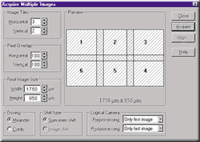
1. The integrated image acquisition control allows the automatic acquisition of individual images; image rotation and stage displacement are automatically determined.
2. This example uses six individual images for the Mia process. There are no limits to the number of images Mia can process in one session. The number of images you actually use is dependent only on the storage capacity of your computer
3. After image acquisition, you can manually determine the number, pattern and correlation of the individual images. In the case of automatic image acquisition, these parameters will be preset for you.
4. After Mia has processed the images, the overlap areas can be adjusted automatically for differences in intensity.
The result of the Mia process:
The end result (reduced to 0.7% of its actual area)
Image size: 2159 x 1062 pixels in 24-bit true color.
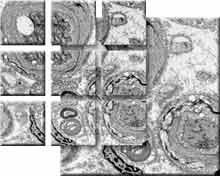
Nine image sections, each 1024 x 1024 pixels in size, automatically stiched together by the module Mia.
The high resolution 3300 x 3300 pixel sized full view image shows healthy and degenerated nerve cells.
EFI (extended focal imaging)
Focal depth 가 다른 이미지를 하나의 이미지로 합성하여 또렷한 이미지를 얻을 수 있습니다.
Microscopy at unlimited depth of focus
By using the efi module, you can solve a known and limiting problem of light microscopy: Microscopes in general have only a very limited depth of focus. Details which are visible in separate images with different focus settings are normally not visible in one single image.
efi records images with different focus settings and extracts those parts of the image that are in focus. Mounted into a single image, these details combine to create an image with unlimited depth of focus.
efi supports the automatic montaging of both color and b/w image series. Optionally, you can reconstruct a height map from these images. Used in live mode, efi provides both a live image as well as the partially reconstructed image. Missing details can be focused interactively and added to the current image.
efi automatically aligns images that show a lateral displacement, such as if the images were taken with a stereo microscope. Anoptional motor stage control provides the added advantage of automatic image acquisition and efi processing.
Live-image and Real-time calculated recombination of image
Reconstructed image
efi circumvents the physical limitations of a microscope regarding its depth of focus. A number of images are recorded, each one with a different focus setting. The parts of each image that are in focus are extracted and combined into a single, focused image.
efi allows the combination of images with lateral displacements caused by different focus settings. This is a common effect when using a stereo microscope to capture the images. Before calculating the efi image, an integrated pre-alignment step shifts the images so that they overlap perfectly. Only after this alignment has been achieved does efi calculate the final image.
Heightmap of the reconstructed image
Surface reconstruction
efi image surface reconstruction combined with the heightmap
efi provides the option of calculating a height map from individual images. This height map can be used to produce a 3-D representation of the object. As an optional feature, the efi image can be used to texture the height map, creating a realistic topographic representation of the object’s surface.
A number of powerful functions for animating the 3-D structure within analySIS® enable the user to study the object from an optimal angle and position.
Live-image and Real-time calculated recombination of image
Reconstructed image
Recombination of a focus series of a metallurgical sample. The recombined efi image is necessary for conducting advanced analysis.
efi allows the concurrent visualization of the live image directly from the microscope and the current recombined image. Areas that are still unfocused can be added interactively.
A simple addition of more images, even if the original acquisition was finished, allows adding further focused details to the image.
Live-image and Real-time calculated recombination of image
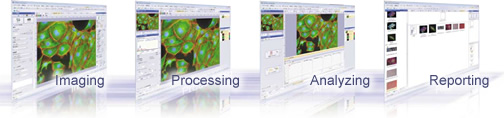
이미징의 미래에 오신 것을 환영합니다. cellSens에 오신 것을 환영합니다. 신뢰할 수 있는 영상 획득 및 저장의 영상 캡쳐 소프트웨어 혹은 자동화된 멀티 채널 이미징 연구가 필요하다면 새로운 cellSens 소프트웨어는 가치 있는 이미징 실험을 위한 최상의 솔루션을 제공합니다.올림푸스 cellSens 플랫폼은 작업의 흐름에 기반한 유일한 개별화 및 직관적인 이미징 경험을 생성합니다. cellSens로 PC 상의 아이콘들과 툴바를 통하여 간단하게 제어가능하고 생산성을 향상할 수 있습니다.cellSens는 사용하기 쉽고 강력하고 유연합니다. 모듈화 방식의 디자인으로 여러분의 예산 및 이미징 어플리케이션에 대한 대응이 쉬워 여러분의 발전된 연구와 함께 cellSens도 성장할 것입니다.
특징 및 이득
cellSens 소프트웨어는 Biological 영상의 캡쳐, 출력 및 분석을 위한 쉬운 커스터마이징이 가능한 디지털 이미징 소프트웨어 입니다. 유일한 MyFunctions 툴바와 쉽게 개인화가 가능한 desktop으로 cellSens는 여러분이 가장 필요로 하는 영상 획득 및 분석 요구에 대한 기능성, 유연성 및 측정성을 제공하는 끊김없는 작업환경을 생성합니다.
● 커스터마이징
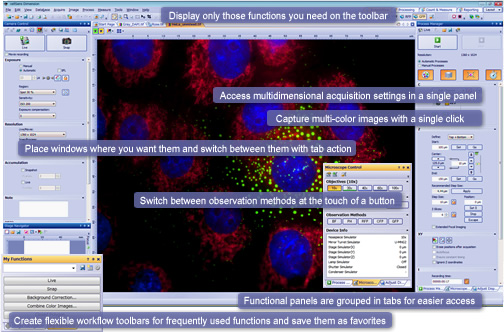
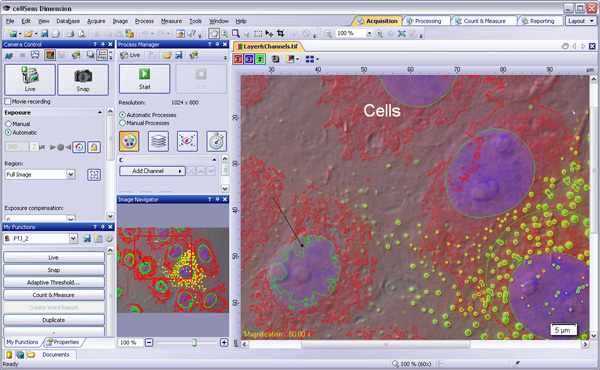
새로운 완전한 커스터마이즈 인터페이스는 사용자가 각각의 작업 흐름을 더욱 효과적인 이미징과 측정 진행 제공을 가능하게 합니다. 획득 (Acqusition), 처리 (Processing)와 측정(Measurement)를 위한 레이아웃 탭은 그러한 기능이 필요할 때 필요한 기능을 접근 가능하게 해 줍니다. MyFunctions 작업흐름(workflow)툴바는 진행 지향의 작업 흐름을 간단하고 사용하기 쉽게 만듭니다. 또한 메뉴와 툴바는 완전하게 커스터마이징이 가능하고 문서와 도구 패널 또한 각각에 맞게 재 정렬 할 수 있습니다.
● 획득 및 장치 제어
cellSens는 이미지 획득과 하드웨어 자동화 장비를 다양하게 제어합니다. 올림푸스, Hamamatsu, QImaging 과 다른 카메라 브랜드들을 지원하여 최상의 유연성을 제공합니다. 자동화된 획득 역시 간단합니다. 작업 매니저는 자동화된 올림푸스 현미경과 주변 장치들로 직관적인 Multidimensional 이미징 경험으로 바꾸어 줍니다.
Acquisition Layout에서 모든 영상 획득 기능을 쉽게 접근 할 수 있습니다.
● 영상 출력 및 처리
영상 출력 및 처리 도구들은 정밀하고 효율적인 이미지 분석 수행을 위한 결정적인 요소입니다. 다양한 데이터, movie playback, projection, montage 혹은 slice view와 상호 연계가 됩니다. CI Deconvolution 모듈의 Voxel Viewer로 더 나은 3D 기능을 얻을 수 있으며 multiple widefield 및 컨포컬 이미징 처리를 위한 Advanced Constrained Iterative Deconvolution 알고리듬으로 업계 최고의 속도로 최신의 현미경 영상 deconvolution 기술을 제공합니다.
다중 출력 도구로 빠르게 데이터를 리뷰 할 수 있습니다. 레이어와 채널을 on/off 토글함으로서 관심있는 데이터에 주안점을 줄 수 있습니다.
● 영상 분석
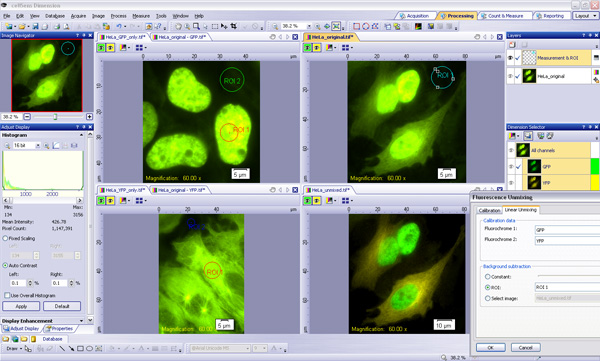
cellSnes는 기본적인 점간 측정에서 상분석부터 고급의 형상 분석 및 다중 개채 분석까지 많은 영상 분석 요구들을 처리하는 분석도구를 제공합니다. cellSens에서 사용 가능한 적절한 도구들로 Colocalization 및 Linear Unmixing를 처리할 수 있습니다.
● 협력
사용자가 대 규모의 데이터를 획득하기 위한 수집된 이미지, 측정 및 주석 정보의 저장 및 회수 기능은 매우 중요합니다. 완전하게 커이터마이즈 가능한 SQL Server Express 기반의 데이터베이스는 로컬 혹은 네트워크상에서 운용됩니다. NetCam 모듈 (연구 및 교육 용도의)은 실시간 이미지를 인터넷을 통하여 제공하여 동료와의 협력을 가능하게 합니다. Olympus 웹사이트에서 다운로드 가능한 무료의 cellSens Viewer 소프트를 사용하여 동료와 오프라인상의 협업도 가능합니다.
데이터베이스 모듈은 대용량 데이터의 관리를 단순화 합니다.
사용 가능한 패키지
cellSens 소프트웨어 – 요구와 예산의 다양성을 위한 다 단계 패키지
1. cellSens Dimension – 포괄적인 이미징 솔루션
올림푸스의 완벽한 이미지 획득, 처리, 보기 및 분석 솔루션으로 기본 패키지와 여러 개의 추가 솔루션을 제공 합니다.
유연하고 직관적인 획득 – 하나의 이미지 혹은 다채널, x/y/z 및 시간 이미지 획득 여부에 상관없이 이미지 획득은 간단합니다. cellSens Dimension의 표준 패키지는 시간간격 (Time lapse), Z-stack 및 멀티 포커스 이미지 (EFI)가 있습니다. 또한 포함된 NetCam 모듈(연구 및 교육을 위한)은 동료들에게 실시간의 실제 이미지를 스트리밍 할 수 있습니다.
완벽한 처리, 분석 및 보고서 도구 패키지 – cellsens Dimension은 kernel 필터, 개체 임계값 및 상 분율을 포함한 진보된 처리 및 분석 기능들을 제공합니다. Microsoft사의 Word을 위한 플러그인을 사용하여 여러분의 데이터로 전문적인 보고서를 생성하십시오.
이 패키지의 옵션의 확장 모듈들:- Multiposition Acquisition – Count&Measure Advanced – CI Deconvolution – Database
2. cellSens Standard – 기본 이미지 획득, 처리 및 측정
cellsens Standard는 시간간격 촬영(Time Lapse) 및 수동 몽타쥬 혹은 이미지 스티칭 (MIA) 과 같은 향상된 이미지 캡쳐 처리를 가능하게 합니다. 또한 명암 기반의 소프트웨어 오토포커스, TWAIN 입력장치로부터의 획득도 제공합니다. 이미지 주석, 처리 및 측정 도구들이 제공됩니다.
3. cellSens Entry – 기본 이미지 획득
cellSens Entry 는 현미경으로 디지털 이미지 획득 및 문서화를 원하는 연구자들의 이상적인 초석이 될 것입니다. 올림푸스 cellSens Entry는 쉬운 설치 및 모든 올림푸스 카메라로부터 이미지 획득이 가능합니다.
4. cellSens Viewer – 무료 이미지 뷰어
무료의 cellSens Viewer 소프트웨어를 사용하여 여러분의 동료와 함께 하십시오. cellSens Viewer 소프트웨어를 다운 받은 누구라도 어떠한 cellSens 제품으로부터의 획득, 측정, 주석이 포함된 이미지를 보실 수 있습니다.
Process Manager는 현미경, 셔터, 필터 휠 및 Z축 장치들의 복잡한 획득 작업을 빠르게 해줍니다. 어떠한 조합의 다채널(multi-wavelength), Z-stack 및 시간간격(Time lapse)실험도 가능 합니다. 형광 Unmixing 및 colocalization 분석 도구로 여러분의 다채널(multi-wavelength) 영상에서 최대의 정보를 얻으십시오.
선형 Unmixing 기능의 GFP 및 YFP Unmix
2. 다중 위치 획득 (Multi-position Acquisition)
XY 모터 스테이지 제어로 이미지 획득 능력을 확장 하십시오. 다중 위치 획득은 붙여진 파노라마 이미지들의 빠른 생성을 위한 자동화된 다중 이미지 정렬을 제공합니다. 단 한번의 클릭으로 전체 스테이지 영역 혹은 다중 스테이지 위치들을 방문함으로써 기구들의 작업량 및 효율을 개선 하십시오.
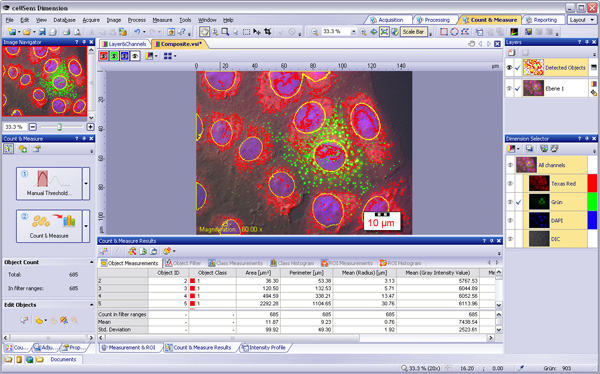
3. Count & Measure Advanced
임계값 기반의 효율적이고 정밀한 개체들의 검출 및 분류, 데이터 내의 분리된 그룹들의 명확하고 효율적인 다중 요소 개체 분류를 수행 하십시오. 이 모듈은 중첩 교정된 영상의 격리된 Emission 신호 이미지의 spectral unmixing에도 적용 가능합니다.
Count & Measure Advanced 모듈은 개채 식별, 측정 및 개채 분류에 대한 완벽한 도구들을 가집니다.
4. CI Deconvolution
Constrained iterative (CI) deconvolution을 이용하여 믿을 수 없는 속도로 이미지 해상도, 선예도 및 명암을 개선 하십시오. 이 솔루션은 극강의 품질 및 deconvolution 알고리듬의 효율성을 제공합니다. 생성된 여러분의 고품질 이미지로 Voxel-Viewer 기능을 통한 진보된 3D 시각화로 탐험할 수 있습니다.
CI Deconvolution 모듈은 최신의 알고리듬과 업계 최고의 속도를 제공합니다.
5. Database
만약 대량의 이미지와 데이터를 생성한다면, 여러분의 콜렉션에서 효율적인 관리 및 검색은 핵심적인 기능 입니다. cellSens Dimsension을 위한 Database 모듈은 Microsoft SQL Server Express 2005를 사용한 클라이언트-서버 데이터베이스를 추가하여 이미지들과 관련 데이터 및 메타 데이터가 명확하게 관리할 수 있도록 합니다.
castIron is the software specially designed to analyze gray iron. It measures the shape and size of graphite, as well as the ratio of ferrite to perlite. Both of these measurements meet the requirements of well established national and international standards like EN-ISO and ASTM.
All functions support either automatic or manual operation. The implementation of individual company standards is supported.
Analysis of cast iron according to standards
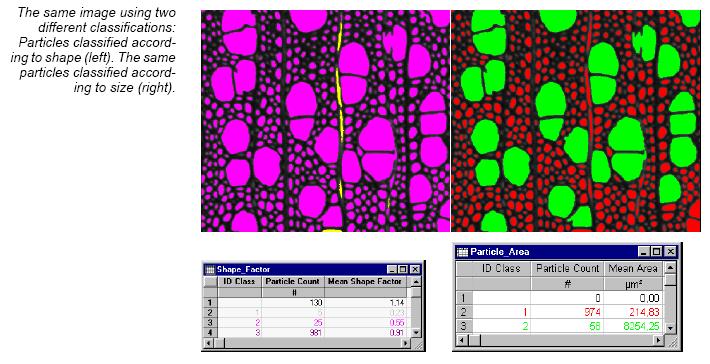
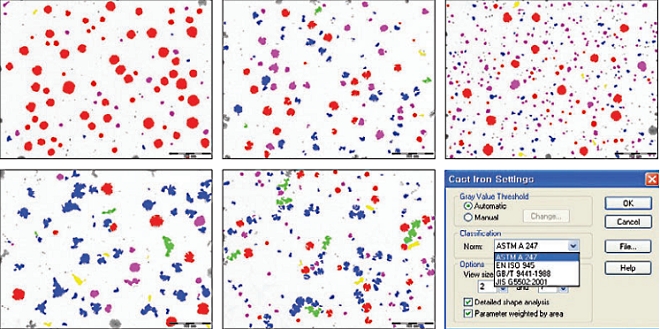
castIron uses modern image-analytical multiclassification algorithms. Each graphite particle is automatically recognized and classified with regard to its shape and size. Results are presented either according to · ASTM A 247 · JIS G 5502 · EN ISO 945 or · GB 9441-88.
Switching on the detailed analysis option enables the calculation of additional size and shape factor distributions. These are outputted in sheet and diagram format.
The ferrite and perlite fraction is calculated with the graphite content taken into account. The automatically generated result sheets and diagrams can be outputted in different formats.
All settings of castIron are saved to profiles and therefore easily adaptable to different preparation techniques or report requirements.
castIron is completely integrated into the analySIS®image analytical software. This integration ensures that the whole evaluatory process – from image acquisition to the completed report – is fully automated.
castIronautomatically sets thresholds and therefore detects graphite particles immediately. The graphite particles can be classified according to predefined standards. A detailed shape class statistic is included to achieve highly precise and reliable reults. To rule out any statistical or specimen-related error, castIron supports the fast and efficient evaluation of a great number of images for one analysis.
Ferrite to perlite ratio measurements are corrected for the graphite sample. Corrections can be made using either a manually inputted constant graphite value or the result of a preceeding graphite measurement.
castIron can operate fully automatic when using the analySIS® AutoMater. A simple push of the button, and all images are acquired, evaluated and the report is generated.
Specifications
automatic evaluation of cast iron with regard to size and shape of the graphite
all common norms supported (ASTM A 247, JIS G 5502, EN ISO 945, GB 9441-88)
integration of individual industry and company norms
detailed shape and size class statistics
determination of ferrite and perlite proportions regarding graphite content
graphite content immediately updated via most recently conducted measurement – at the push of a button
automatic generation of norm-adapted report
all settings saveable
entire evaluatory process is fully automated
integrated in analySIS® 3.0 and higher
Layer Thickness
analySIS Five imager 이상의 제품에 Module을 추가 할 수 있습니다.
Surface coatings protect materials from corrosion and wear. Specially applied coatings provide materials with new properties.
These might be decorative coatings or insulatory and anti-corrosion coatings as well. Other kinds of coatings alter hardness locally.
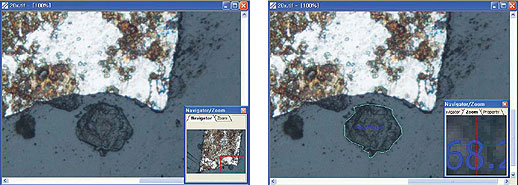
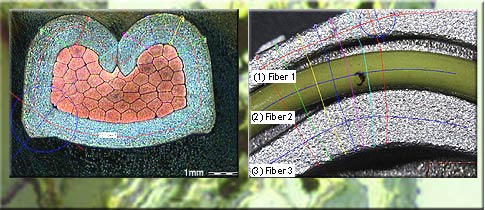
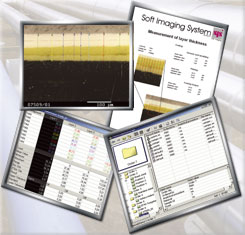
Soft Imaging System offers a series of solutions for determining the various thickness parameters. The analySIS® add-in ltm (layer thickness measurement) offers efficient coating-thickness measurement and crack analysis.
The concept ltm is mainly a tool for manually determining layer thickness for analyzing porous or compact coatings but also provides highly precise measurement of crack widths. The add-in supports any layer geometry with no restrictions to straight lines. ltm measures layer thickness(-es) of single and multiple coatings of a cut specimen using the concept of neutral fibers which predefine the direction of the measurement.
Measurement options and data handling
When measuring, ltm is capable of following the contours of arbitrarily shaped surfaces. The software tracks the crack or the shape of the contour of the coating and provides the calculated data results immediately. Several measurement features such as layer-thickness values for each layer, average values, minimum and maximum values or standard deviation and a tolerance control are available.
Fully integrated
The full integration of ltm into the analySIS® software provides all the capabilities and advantages to successfully face the challenges of image processing and analysis. All relevant images, evaluation sheets and diagrams can be stored in the structured archiving system with one mouse click following layer thickness measurement. Using drag&drop functionality for images, sheets, diagrams and database content, the report generator lets you create professional reports from the archived data within seconds.
Specifications
Convenient tool for measuring layer thicknesses in cross sections Supports any layer geometry and orientation Supports multiple layers – coherent or not coherent Concept of neutral fibers for high precision measurements Multitude of neutral fiber definable Result sheet includes statistics Support of tolerances for every single layer (“OK- Not OK” evaluation (if tolerances are specified) Layer structures can be saved for later use including all parameters Fully integrated into analySIS® (image acquisition, image processing and analyzing, structured archiving, reporting)
BONUS Package란 무료로 제공되는 기능으로서 ChartNav, mht (microhardness testing), roughness를 지원합니다. 단, analySIS Five imager 이상의 제품만 지원합니다. (imager, docu, auto, pro등급만 지원)
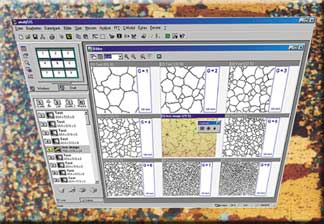
chartNav specialized module for use in the metallography field
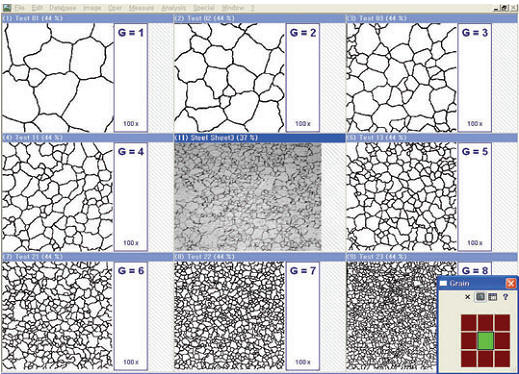
chartNav makes use of the analySIS® ViewPort Manager. This ViewPort Manager enables you to view several images simultaneously via multiple ViewPorts. This makes comparing a live image to reference images very easy – at a glance.
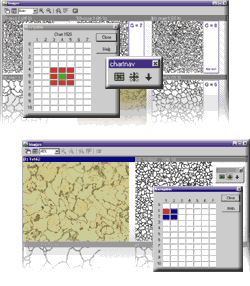
chartNav is operated via specific dialog boxes. A separate button bar allows you to switch back and forth between the 3×3 or 2×2 image configuration.
The alignment series required is selected from an extendable list. chartNav supports the creation of your own, and in principle, as-long-as-you-wish alignment series. Predefined norm series can be supplemented; user-defined alignment series created.
You can switch back and forth between a 2×2 or 3×3 image view. A green square represents live-image position (for the 3×3 view, this is in the center; for 2×2, at the upper-left). This square can be moved to the various lines and columns via mouse / keyboard. This is the way further images of the alignment series are displayed in ViewPorts. Lines and columns can be named as you like. You can also have the name of the norm series displayed.
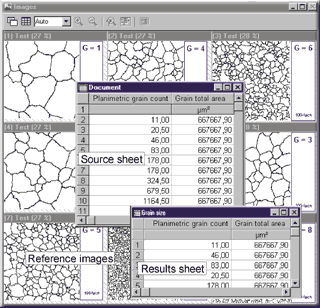
Moreover, you can have the name of the current alignment series displayed and edit the line and column names. Each alignment series can be extended with a user-definable data sheet. Its lines contain the specific data of the respective reference images. This data can be transferred to a results sheet during an alignment-series comparison and used for classification of the object within the live image. The statistic functions within analySIS® provide additional evaluation options.
Once you’ve found the appropriate reference image, you can transfer its data from a user-definable source sheet to a list of results at the click of a button. A statistical evaluation of this classification provides further information. Images acquired and result sheets can be saved and managed in theanalySIS® integrated database.
chartNav ensures rapid image acquisition, assignment of live image to reference image, and documentation of object properties.
We also offer chartnav extensions for the following standards:
chartNav extensions:
description
Digital Chart DIN 50601
Reference images of standard DIN 50601 for micrographic determination of the ferritic or austenitic grain size of steels and ferrous materials.
Digital Chart DIN 50602
Reference images of standard DIN 50602 for the microscopic examination of special steels using standard diagrams to assess the content of non-metallic inclusions.
Digital Chart DIN EN ISO 945
Reference images of standard DIN EN ISO 945 for the designation of microstructure of graphite inclusive.
Digital Chart ISO 643
Reference images of standard ISO 643 for the micrographic determination of the ferritic or austenitic grain size.
Digital chart ASTM E 112
Reference images of standard ASTM E 112 for the micrographic determination of the ferritic or austenitic grain size.
Specifications
excellent ergonomics through simultaneous image display alignment-series comparison with live or saved images easy to operate via the image matrix 3×3 or 2×2 image views easy to select image series unrestricted definition of own image series display of ID numbers easy classification via user-definable data sheets statistical and archiving functions integrated in analySIS® 3.0 and higher
mht(microhardness testing)
Analyzing microhardness indents quantitatively
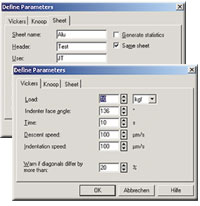
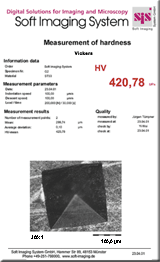
mht is the analySIS® module for determining microhardness according to Vickers and Knoop. mht supports ‘Reportlink’ so you can insert your measurement results into reportsfully automatically.
mht investigates the hardness indents using interactive measurement methods.
Results appear in a sheet which includes the measured and calculated values, including statistical evaluation.
mht supports determination of hardnesscurves. You define the starting line and direction interactively.
The calculated values are then displayed graphically. mht also provides you with the option of reading out your devicesetting.
· EN ISO 945 · ASTM A 247 · GB 9441-88 · …
Roughness Module
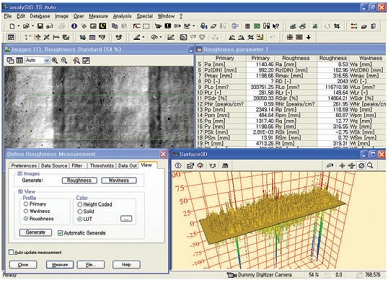
analySIS Five imager 이상의 제품에 기본적으로 사용이 가능한 Roughness 는 캡쳐된 화면의 정보를 이용하여 Roughness를 측정 합니다.
How to measure Roughness
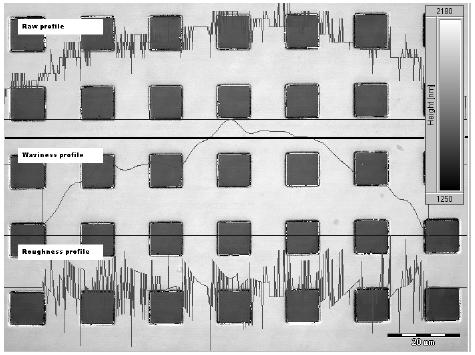
Roughness along a line
The results of a roughness measurement is given as a set of parameters and profiles, derived from a measurement of the surface of the specimen.
This measurement is performed along a line. The traditional method for this
Primary, Roughness, and Waviness 233 is leading a mechanical stylus across the surface of the specimen and tracking the height variation. The actual parameters and profiles are extracted and calculated from this measurement. With the roughness module you interactively perform the measurement on an image calibrated so that the image intensity corresponds to a height value. A “no dimension” approach is also supported. In case a dimension is required, the given parameters is noted as “NA”.
Roughness along a
polyline
Using the Roughness module in 1D, you may also measure the roughness along a polyline instead along a simple, straight line. The calculations used for determining the profiles are designed to correctly handle measurements along straight lines, though. This means that the roughness and waviness near the vertices of the polyline have to be used with caution.
Roughness in a rectangular
area
The traditional approach of leading a mechanical stylus along a line across the surface, does not allow extending the method to two-dimensional measurements.
Therefore, all roughness parameters are calculated rather than measured. For an explanation and the formulas used, refer to the chapter Measuring 2D Roughness.
An example for three profiles for a Row displayed. the thick, black line is the one selected for the analysis.
The parts with a value of 0 in the waviness and roughness profiles are due to the setting of λc
“analySIS“제품은 세계적으로 유명한 독일의 영상분석 전문업체인 OLYMPUS Soft Imaging System(OSIS) 사에서 제작한 최첨단 영상분석 프로그램입니다.
OLYMPUS Soft Imaging System사는 1987년 설립된 후 2006년 4월 OLYMPUS의 일원이 되었고 광학 현미경 및 전자 현미경용 분석 소프트웨어 및 디지털 카메라 제품을 포함한 영상분석의 모든 솔루션 제공하고 있으며 유럽을 중심으로 다양한 분야에 사용되어 전세계의 많은 영상 분석 전문가와 연구진에게 사랑과 신뢰를 받고 있습니다.
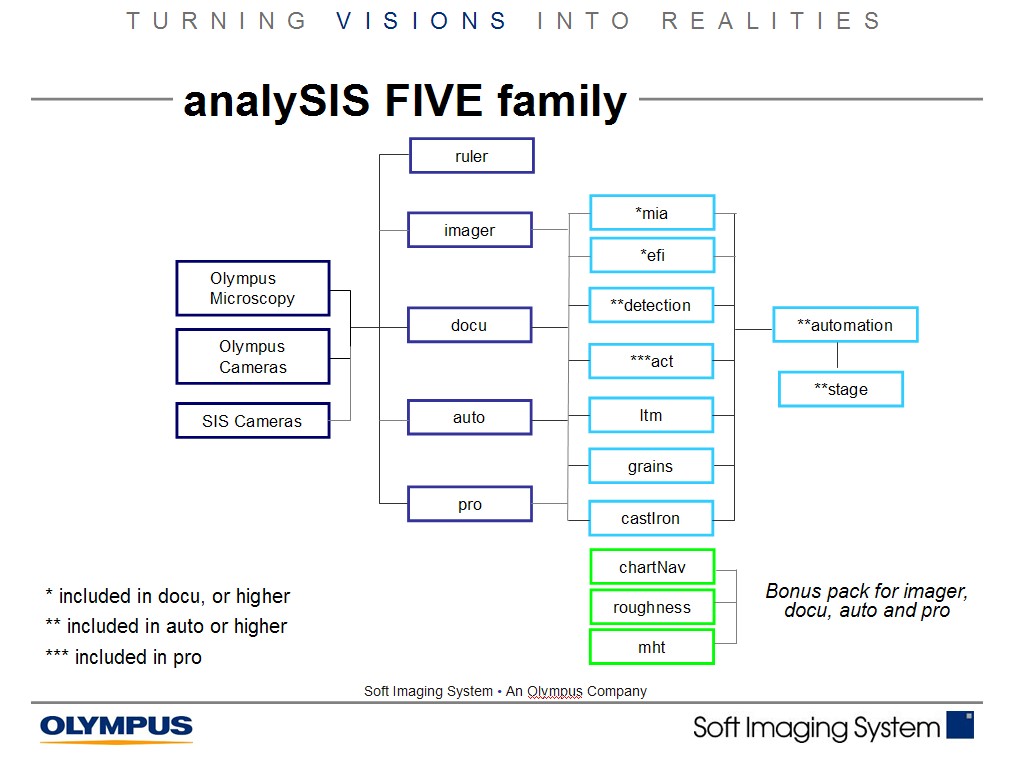
주로 금속, 반도체, 전기, 전자, 자동차과 같은 정밀한 측정을 필요로 하는 산업용 image analyzer인 analySIS five는 다음과 같은 등급으로 구성되어 있고, analySIS five imager 이상의 등급부터 필요한 module을 추가하거나 제품을 upgrade할 수 있습니다.
ruler : analySIS five의 가장 처음 등급이지만 강력한 측정 기능을 제공합니다.
imager : analySIS five의 두번째 등급으로서 ruler의 모든 기능과 data base, report 기능이 추가 되었습니다. 또한 imager 이상의 등급부터 필요한 module을 추가하거나 제품을 upgrade할 수 있습니다.
docu : analySIS five의 세번쩨 등급으로서 imger의 모든 기능과 Multiple Image Alignment (Mia), Extended Focal Imaging (efi), Graph 기능을 제공합니다.
auto : analySIS five의 네번째 등급으로서 docu의 모든 기능과 Particle analysis(detection:입도분석), Automater / Stage control의 기능을 제공합니다.
pro : analySIS five의 최고 등급으로서 auto의 모든 기능과 fft (fast fourier transformation), imaging C, act (automatic caliper tool), interCept 등의 기능을 제공합니다.
OLYMPUS Soft Imaging System 사의 최신 영상 분석 프로그램인 “analySIS Five” 시리즈는 사용자에게 정확하고 신뢰성 있는 데이터를 얻게 해 줄 것 입니다.
analySIS Five ruler
analySIS Five ruler는 analySIS Five Series의 기초 프로그램으로서, 사용자가 불필요한 기능을 삭제하여, 간단하게 측정을 할 수 있는 프로그램입니다.
Acquisition
여러 종류의 카메라를 연결 상황에 맞게 카메라를 연결하여 사용할 수 있습니다.
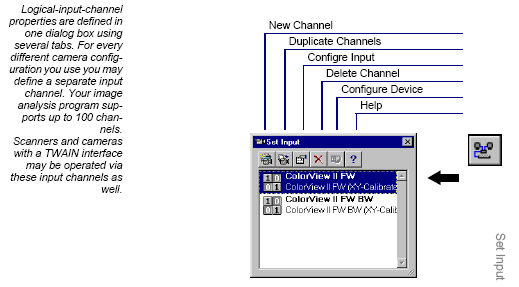
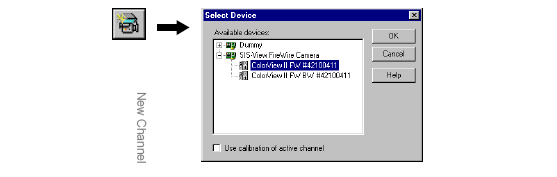
New Channel
카메라에 채널을 두어 화면 캡쳐시 다수의 카메라 속성을 두어 측정 할 수 있습니다.
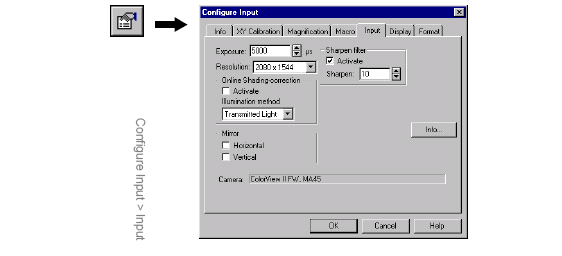
Configure Input
카메라의 속성을 변경합니다.
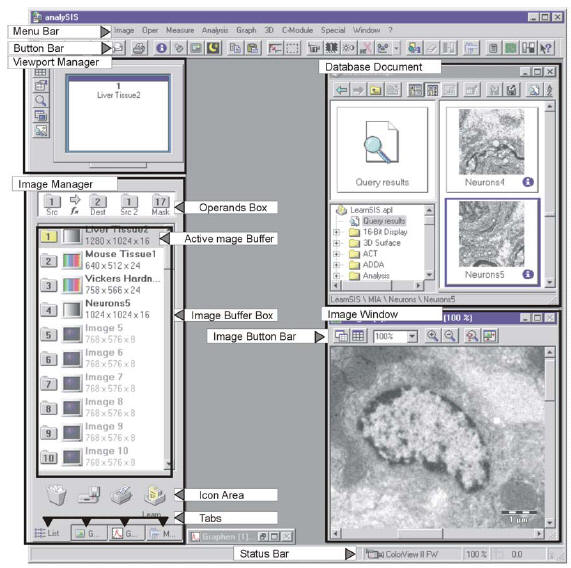
User Interface
전문가를 위한 인터페이스 방식으로 한눈에 알 수 있는 구조입니다
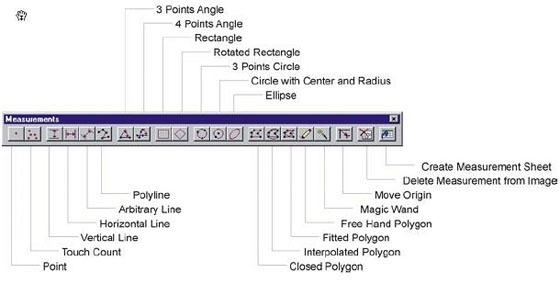
Measure
강력한 Magic Wand 기능을 자랑합니다.
analySIS Five imager
analySIS Five imager는 analySIS Five Series중 analySIS Fiver ruler을 기본으로 몇 가지 기능을 추가한 프로그램입니다. analySIS Five ruler가 꼭 필요한 기본 기능이라면, analySIS Five imager는 레포트 작성기능과 DataBase등의 부가 기능을 지원합니다.
DataBase
기능
defining or editing fields deleting the database defining a database password changing image and document paths changing the standard image format
Data types
Text: letters and numbers up to a maximum of 255 characters. Long: whole numbers, e.g., -10, 0 or 500. Double: whole numbers and fractions, e.g., 1.2 (whether a comma or a period is used for decimal fractions depends on the local settings of your operating system). Date/Time: The permitted date and time formats depend on the local settings of your operating system. Memo: any length texts Yes/No: For fields of this data type there is either the status
Report Generator
기능
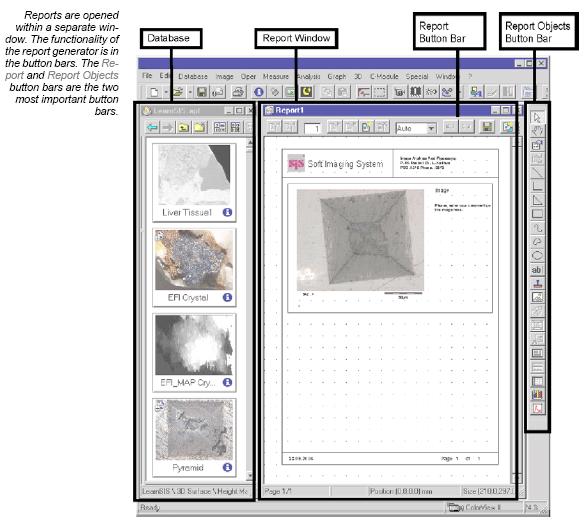
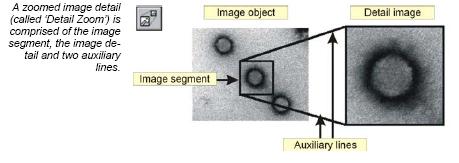
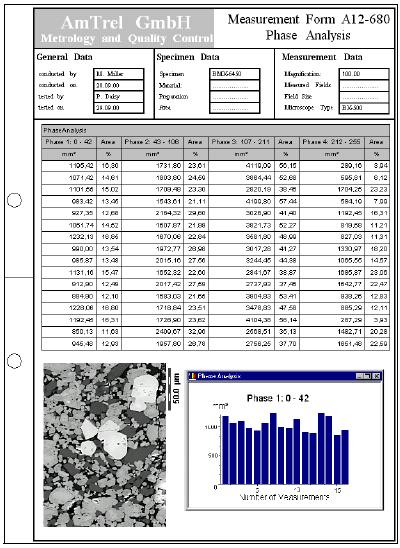
Use report generator to have multi-page reports produced practically automatically, including images of a database or of the image manager. Select a number of, (or lots of) images from an image database and have them all added to a report using a single command. Full database-integrated access Along with the images themselves that you get out of a database, you can have all additional information on the images (contained in database fields of image databases) automatically included in a report. Sheets with important measurement results can also be automatically filled in. Working with images A particular focus of report generator is being able to work with images in an optimal way: norm enlargements are followed; detail zooms can be inserted; appropriate image segments can be selected; and more. Texts, Sheets, Diagrams, Graphs Most types of documents that you generate within your image analysis program can be inserted into a report. Via report generator, you can, e. g., print out images along with related measurement sheets and diagrams on the same page. Flexible Page Layouting Report generator provides you with the most flexible page layouting imaginable: you set up your own template pages exactly the way you want them to be. You generate your template pages only once. These templates are the basis for your reports and ensure that the appearance of your documents is uniform. MS Word compatible Via the RTF Export function, you can have reports exported to MS Word 1:1. This enables you to communicate with fellow colleagues who may not have access to your image analysis program.
예 1)
예 2)
예 3)
analySIS Five docu
analySIS Five docu는 analySIS Five Series중 analySIS Fiver imager를 기본으로 몇 가지 기능을 추가한 프로그램입니다. analySIS Five docu는 다음 분석이 가능합니다.
Dual Screen System
두 개의 모니터를 사용하여 넓은 화면으로 이미지의 분석 효율이 높아집니다.
Graph
그래프 기능으로 레포트에 충실한 자료로 당신의 레포트 질을 높일 수 있습니다.
fis (Fast Image Acquisition)
고속으로 이미지를 획득하여 빠른 변화를 손쉽게 저장할 수 있습니다.
Stage Navigator
Stage Navigator를 이용하여 원하고자 하는 포인트를 지정하여 빠르고, 정확하게 확인 하실 수 있습니다.
With the Stage Navigator you can acquire overview images of a sample and use them for a precise navigation. This assures that you always know your exact location on the sample. You can recognize interesting areas in the sample, move to them in the live-image, and acquire images with a higher magnification. In the overview image, a “grid within a grid,” enables you to recognize the areas you have acquired with a higher magnification. You can deactivate this display if you want to.
MIA (multiple image alignment)
여러장의 사진을 합성하여 넓은 영역을 하나의 파일로 만들어 편리한 관찰이 가능합니다.
Mia works with both monochrome and color images, supports the entire number of file formats in analySIS®, and includes an intelligent image acquisition mode with automatic calibration of the camera and camera and/or image rotation.
Once this has been defined, all you need to do is to make a decision about the required image size and resolution. Stage movement, image acquisition and the computation of the optimum overlap are done automatically by the software.
To effect the image montage, the individual images have to be aligned with sub-pixel accuracy. Mia achieves this through intelligent pattern recognition techniques and plausibility checks within the overlap areas.
The resulting image has the same resolution as the individual images but is larger. It has more lines and columns. It thus represents an image that could not be acquired without Mia with high resolution and large field of view.
How does Mia work?
1. The integrated image acquisition control allows the automatic acquisition of individual images; image rotation and stage displacement are automatically determined.
2. This example uses six individual images for the Mia process. There are no limits to the number of images Mia can process in one session. The number of images you actually use is dependent only on the storage capacity of your computer
3. After image acquisition, you can manually determine the number, pattern and correlation of the individual images. In the case of automatic image acquisition, these parameters will be preset for you.
4. After Mia has processed the images, the overlap areas can be adjusted automatically for differences in intensity.
The result of the Mia process:
The end result (reduced to 0.7% of its actual area)
Image size: 2159 x 1062 pixels in 24-bit true color.
Nine image sections, each 1024 x 1024 pixels in size, automatically stiched together by the module Mia.
The high resolution 3300 x 3300 pixel sized full view image shows healthy and degenerated nerve cells.
EFI (extended focal imaging)
Focal depth 가 다른 이미지를 하나의 이미지로 합성하여 또렷한 이미지를 얻을 수 있습니다.
Microscopy at unlimited depth of focus
By using the efi module, you can solve a known and limiting problem of light microscopy: Microscopes in general have only a very limited depth of focus. Details which are visible in separate images with different focus settings are normally not visible in one single image.
efi records images with different focus settings and extracts those parts of the image that are in focus. Mounted into a single image, these details combine to create an image with unlimited depth of focus.
efi supports the automatic montaging of both color and b/w image series. Optionally, you can reconstruct a height map from these images. Used in live mode, efi provides both a live image as well as the partially reconstructed image. Missing details can be focused interactively and added to the current image.
efi automatically aligns images that show a lateral displacement, such as if the images were taken with a stereo microscope. Anoptional motor stage control provides the added advantage of automatic image acquisition and efi processing.
Live-image and Real-time calculated recombination of image
Reconstructed image
efi circumvents the physical limitations of a microscope regarding its depth of focus. A number of images are recorded, each one with a different focus setting. The parts of each image that are in focus are extracted and combined into a single, focused image.
efi allows the combination of images with lateral displacements caused by different focus settings. This is a common effect when using a stereo microscope to capture the images. Before calculating the efi image, an integrated pre-alignment step shifts the images so that they overlap perfectly. Only after this alignment has been achieved does efi calculate the final image.
efi image surface reconstruction combined with the heightmap
efi provides the option of calculating a height map from individual images. This height map can be used to produce a 3-D representation of the object. As an optional feature, the efi image can be used to texture the height map, creating a realistic topographic representation of the object’s surface.
A number of powerful functions for animating the 3-D structure within analySIS® enable the user to study the object from an optimal angle and position.
Live-image and Real-time calculated recombination of image
Reconstructed image
Recombination of a focus series of a metallurgical sample. The recombined efi image is necessary for conducting advanced analysis.
efi allows the concurrent visualization of the live image directly from the microscope and the current recombined image. Areas that are still unfocused can be added interactively.
A simple addition of more images, even if the original acquisition was finished, allows adding further focused details to the image.
Live-image and Real-time calculated recombination of image
Reconstructed image
analySIS Five auto
analySIS Five auto는 analySIS Five Series중 analySIS Fiver docu를 기본으로 몇 가지 기능을 추가한 프로그램입니다. analySIS Five auto는 강력한 Detection기능을 제공하여 다음 분석에 적합 합니다.
Detection
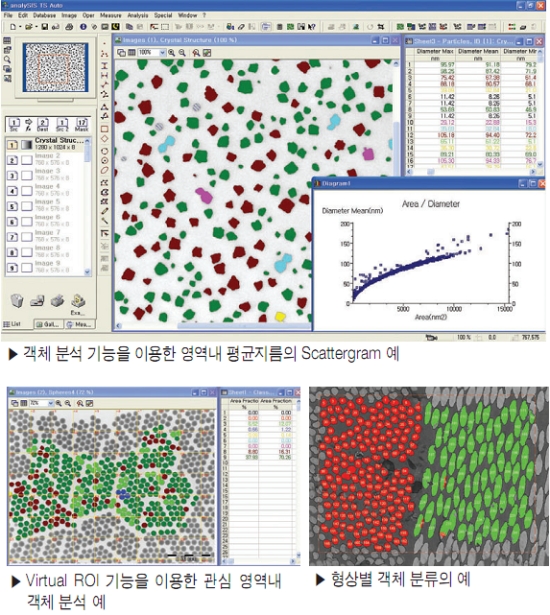
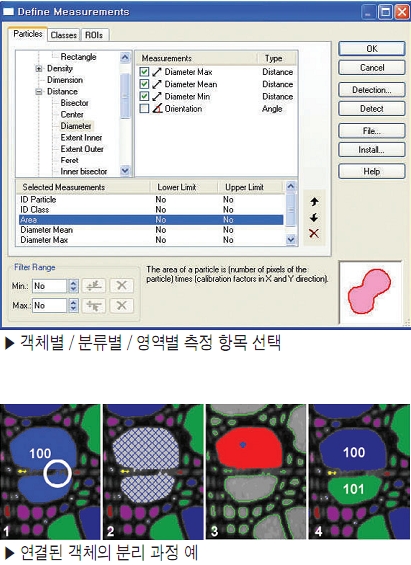
이미지에서 원하는 영역을 설정하여 자동으로 개체 분석을 합니다.
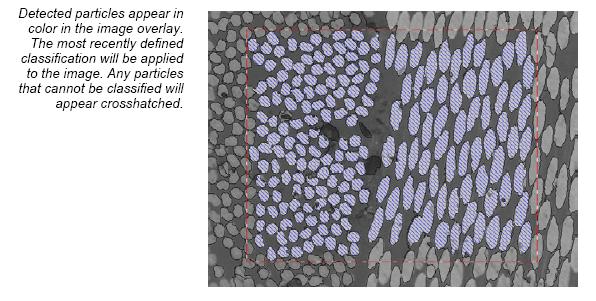
Detection can be applied to an entire image or restricted to areas with a frame or within ROIs. How border particles are treated is something users can decide themselves. The particles detected can then be evaluated according to an extensive array of parameters and then be automatically classified. Logical connection of particle parameters is also supported.
automater / stage
Stage controller 를 이용하여 사용에 편리함을 더합니다.
Our stage drivers support stages from the following manufacturers:
· A+S
· Applied Scientific Instrumentation (ASI)
· Deben
· Fjeld
· Galei
· ITK
· LEO TEM stages
· Linkam
· Ludl
· Märzhäuser
· Micos
· Objective Imaging Ltd.
· Olympus AX70 stage
· Philips CM and XL stages
· PRIOR
· SESAME
· Thermo Nicolet
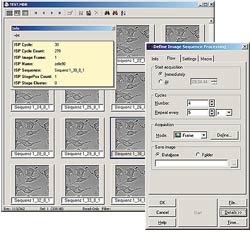
isp (Image Sequence Processing)
Controlling position, sequence and time interval …
In recent years, the investigation, documentation and analysis of living tissue and /or dynamic processes has emerged as an issue of primary importance. One of the core applications, eg, is the investigation of GFP-labeled cells (Green Fluorescence Protein). Multiple labeling of the cells is possible via mutations of the GFP. Light microscopy exploits these technologies using time-lapse and multichannel fluorescence microscopy.
In order for you to be able to acquire and process automatically, a number of processing functions with regard to the microscope are necessary: autofocus; automatic adjustment of the image frame in live observation of GFP-labeled cells (tracking); acquisition of images at different focus positions (z-stacks); and the automatic calculation of an extended focus image based on the z-stacks.
The isp add-in was developed with these requirements in mind. isp controls the entire acquisition process including hardware components such as microscope, cameras and motorized stages. The isp add-in guarantees the exact definition and execution of image acquisition in terms of timing and positioning.
isp and time-lapse image acquisition isp provides the necessary functionality for time-lapse acquisition. Both the number of images, as well as their temporal sequence can be defined. Each sequence can use different cameras or input channel definitions.
isp and a motor stage
If a supported motorized stage is available isp can move to various positions and cycle through image-acquisition sequences. This feature can be used to define multiple positions on a sample where each sequence has its own acquisition parameters, camera settings and techniques, and to cyclically repeat the acquisition for each position according to a user-defined interval.
isp and motorized microscopes isp is completely integrated into the analySIS® software and can communicate with communication-enabled microscopes via a variety of interfaces. This allows isp to control illumination conditions, the filter and objective positions and so on, for each sequence.
isp and macros isp also includes sequential pre- and post-processing steps for controlling external devices such as shutters or monochromators.
isp and animation All image sequences can be stored in a database for later retrieval and analysis. isp includes an animation studio for processing and displaying these sequences. The acquisition times are displayed in the overlay. It is also possible to look at the same sequence in multiple viewports, or to run multiple sequences simultaneously. Sequences can, of course be exported as AVI files.
isp and fluorescence microscopy isp and the mFip analySIS® add-in are fully integrated. This provides options for acquiring and processing sequences that enable you, eg, to combine fluorescence and brightfield images.
isp and process control
isp includes an automatic process control tool. The times necessary for acquisition and processing are shown in a special dialog box which also includes a “test” button for checking and calculating the time required for the sequence. To avoid problems with memory usage during long, unattended processes, isp can estimate the total required space and will give you a warning message should it exceed the space available.
isp complex It is of course possible to combine individual processes and sequences and to set up complex, automated processes ranging from time-lapse and motor-stage-controlled image series and including fluorescence and microscope control.
isp and analySIS® Due to its complete integration into the analySIS® software, the user not only has access to all automatic and manual measurement functions and all image processing features, but also to all add-ins supported by analySIS®. Via the integrated image database, the images (including all available information on imaging conditions) are tracked. A report generator provides everything for preparing professional presentations, which can be e-mailed directly from analySIS® to colleagues or publishers of scientific publications.
wellNav (Well Navigator) Convenient and flexible
The WellNav application supports the simple and fully automatic scan of standardized microtiter plates Integrated calibration routines for offset and slant correction of the microtiter plates together with the integrated motorized stage control guarantee exact alignment and positioning. The software includes an Experiment Manager to easily define complex work processes. These are established just once and then executed via the push of a button. Process series include complete microtiter plates, single wells or even clusters of wells.
analySIS Five pro
analySIS Five pro는 analySIS Five Series중 가장 강력한 기능을 제공하며 다음 분석에 적합합니다.
ACT (Automatic Calliper Tool)
ACT performs complex, repeatedly applied measurement sequences automatically as well as measurements made within images.Any displacement of measurement objects within an image is automatically taken into consideration during measurement.ACT detects edges within images and calculates coordinates, intercept points, angles, radii and distances based on these edges.The geometric elements determined in this way can be linked via further measurement rules.In the learn mode, measurement sequences of varying complexity can thus be defined and saved as profiles.
InterCept
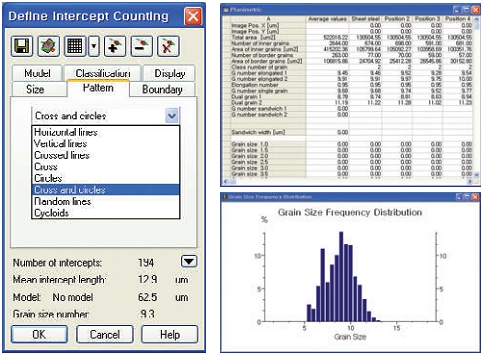
InterCept conducts quantitative image analyses according to the intercept method.Detection of intercept points includes support of edge algorithms as well as segmentation.Multi-phase evaluation is supported. Entire images or user-defined image segments can be analyzed. A large variety of line patterns are available.InterCept offers integrated preview functions for intercept length and related histograms.Results may be classified according to intercept length, distance to reference points and lines.Evaluation and classification can be done using original measurement data or modeled data or done using, for example, the Saltykov method (‘slice model’) or g value.
TrackIT!
TrackIT! analyzes motion.Motion analysis is based on time-lapse series of images (image stacks or exported isp sequences).TrackIT! searches for and detects objects within images of a time-lapse series and then automatically determines the respective difference in location.The software provides motion images of particles, sheets and histograms showing the characteristic motion data such as speed, directional information, track length and distance.In addition, all positions – P (x, y, t) – of each object in motion are available for further analysis.
Imaging C
Imaging C provides users with the C programming language and high-performance image-processing libraries containing more than 8000 commands.Windows API commands and commands from external DLLs are supported.This software extension includes a compiler and a debugger. Programs created using imaging C can be run in analySIS®.
analySIS TS Material은 Material science에 대한 analySIS TS 시리즈 중의 최상급 제품입니다.
복잡한 재료분석 작업을 TS Material로 간편하고 빠르게 수행 하실 수 있습니다.
■ Grain Size 분석
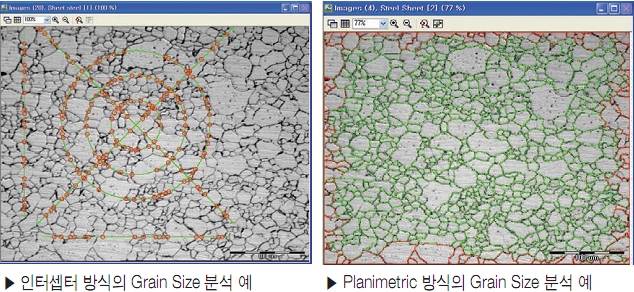
analySIS TS Material은 Grain Size 분석을 위하여 Intercept 및 Planimetric 방식의 분석기능을 제공하고 있습니다. Intercept 방식의 경우 수평, 수직, 대각, 원 조합 설정을 ISO, ASTM, JIS, DIN 등의 규격을 지원합니다.
Planimetric 방식의 Grain 측정방식은 Grain 경계의 재건을 위한 고성능 알고리즘을 지원하여 신뢰성 있고 정확한 Grain Size 분석을 가능케 합니다.
■ 주철 (Cast Iron) 분석
그라파이트 입자의 모양과 크기기를 분리하여 자동으로 검출 및 평가가 가능합니다. 또한 카본 펄라이트 비율분석도 지원합니다.
EN ISO 945, ASTM, JIS, DIN, GB 규격을 지원합니다.
■ Layer 두께 측정
시편의 횡단면 상의 단일 혹은 다중 layer두께를 측정하기 위한 분석 기능입니다. 임의 형상의 표면에 대한 두께를 측정할 수 있으며 측정된 데이터는 통계 값 및 허용 공차를 평가할 수 있습니다.
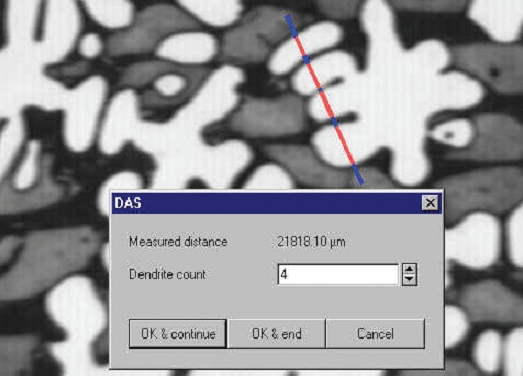
■덴드라이트 암 간격 (DAS – Dendrite Arm Spacing)
덴드라이트 암 간격은 캐스트 알루미늄 내의 평균 덴드라이트 암의 간격의 표준에 따른 결정을 위한 것입니다. 덴드라이트 암은 임계값의 평균에 의해서 자동적으로 검출 됩니다.

 이미지 장치 지원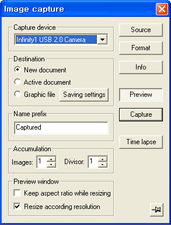













 Convenient tool for measuring layer thicknesses in cross sections